
Apple CarPlay Not Working With VPN? Easy Fixes to Try


 7 min. read
  Published on

Apple CarPlay not working with VPN can kill your drive flow in seconds. CarPlay needs a clean handshake with your car’s head unit and Apple’s services.
A VPN changes routes, adds encryption, and sometimes blocks the discovery traffic CarPlay expects. The good news: you can fix it fast, and keep privacy where it matters.
Quick fixes first (details below):
- Toggle the VPN off and reconnect CarPlay, then test with split tunneling.
- Switch VPN protocol to IKEv2 or WireGuard, then retry CarPlay.
- Change to a nearby VPN server with low latency.
- Forget your car in iOS CarPlay settings and re-pair from scratch.
- Turn off “Limit IP address tracking,” custom DNS, and stealth modes.
- Reset iPhone network settings if nothing else works.
- Try a better VPN for CarPlay behavior: PIA, CyberGhost, or NordVPN.
Why CarPlay Stops Working With a VPN
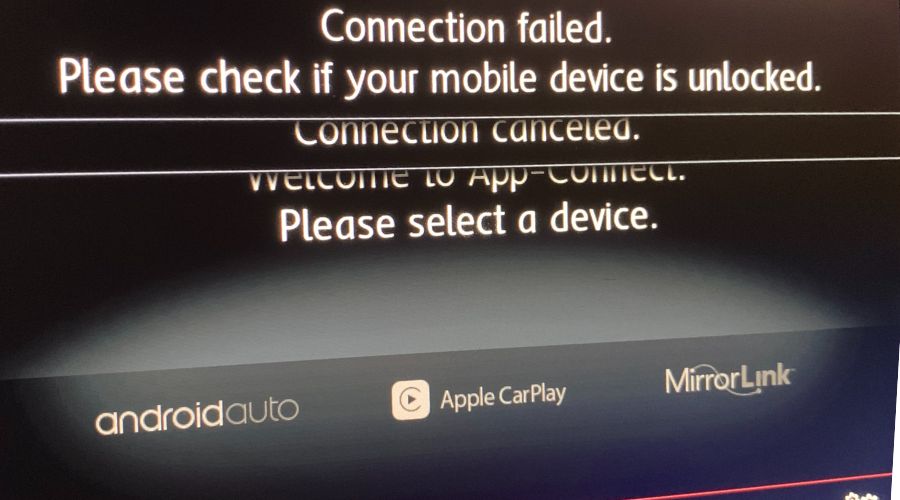
Typical symptoms and errors
- CarPlay does not launch after you plug in or connect wirelessly.
- “CarPlay connection failed” or “iPhone not recognized.”
- Connects, then drops in a loop after a few seconds.
- Maps, Music, or Podcasts load slowly or stall.
- Siri says it cannot connect.
- Wireless setups show Bluetooth connected but the Wi-Fi session never starts.
What is really happening
- The VPN reroutes traffic and can block local discovery that CarPlay needs.
- Extra encryption adds latency and causes handshakes to time out.
- Some VPN features block multicast, Bonjour, or local network access.
- Apple services see a foreign IP and throttle or reject requests.
How to Fix CarPlay Not Working With VPN (Step by Step)
1) Turn Off VPN to Confirm the Issue
Open your VPN app and Disconnect. Plug in or connect wirelessly to CarPlay and test.
Why this helps: You prove the VPN causes the failure, not the cable, port, or head unit.
2) Enable Split Tunneling for CarPlay Apps
Goal: let CarPlay and key apps bypass the VPN while the rest stays protected.
- Open the VPN app > Settings > Split Tunneling / App Bypass.
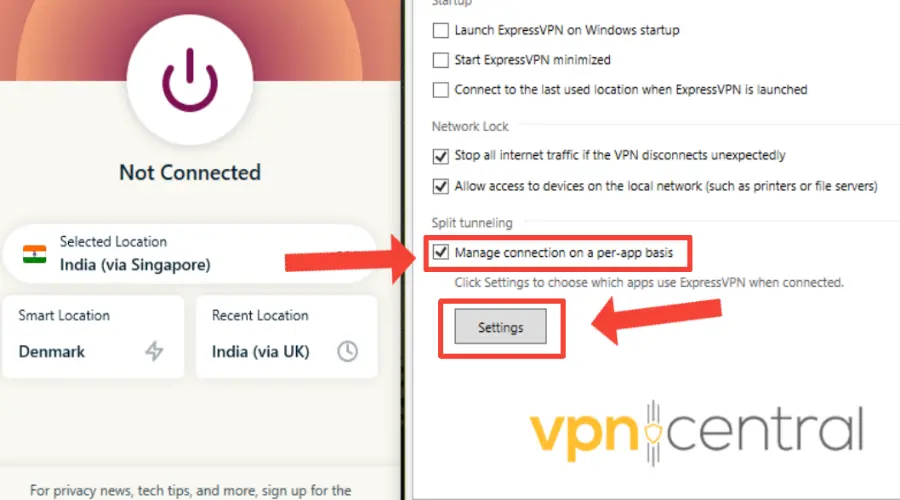
- Exclude Apple Maps, Google Maps, Waze, Music, Podcasts, and any CarPlay companion app.
- If available, enable Allow local network devices or Bypass LAN.
- Reconnect the VPN and test CarPlay again.
3) Switch VPN Protocol in Your App
Some protocols behave better with CarPlay. Try this order:
- IKEv2 for mobile stability.
- WireGuard for speed and quick reconnection.
- OpenVPN UDP, then OpenVPN TCP if needed.
If your VPN stays unstable on iOS, see this guide on fixing VPN not working on iPhone.
4) Choose a Nearby VPN Server
- Select Auto or a server in the closest city.
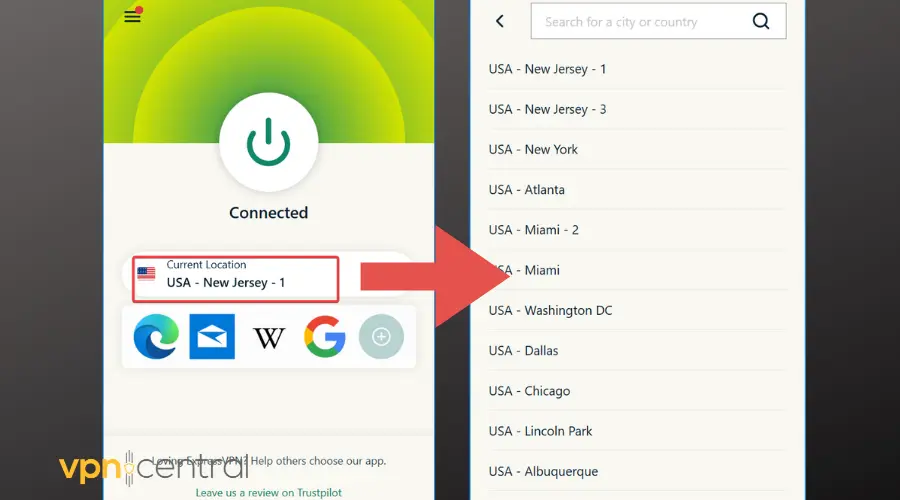
- Avoid busy regions or distant countries.
- Reconnect and test CarPlay.
5) Turn Off Advanced VPN Features
Advanced toggles often block discovery traffic.
- In the VPN app, disable Stealth/Obfuscation, Double VPN, Custom DNS, and IPv6 blocking for a test.
- On iPhone: Settings > Wi-Fi > tap the info icon for your car’s network (if used) > toggle off Private Wi-Fi Address for that network and retest.
- On iPhone: Settings > Privacy & Security > turn off Limit IP address tracking and retest.
These features can also break other Apple services, like when the App Store doesn’t work with VPN.
6) Forget and Re-Pair Your Car in Settings
- iPhone: Settings > General > CarPlay > select your car > Forget This Car.
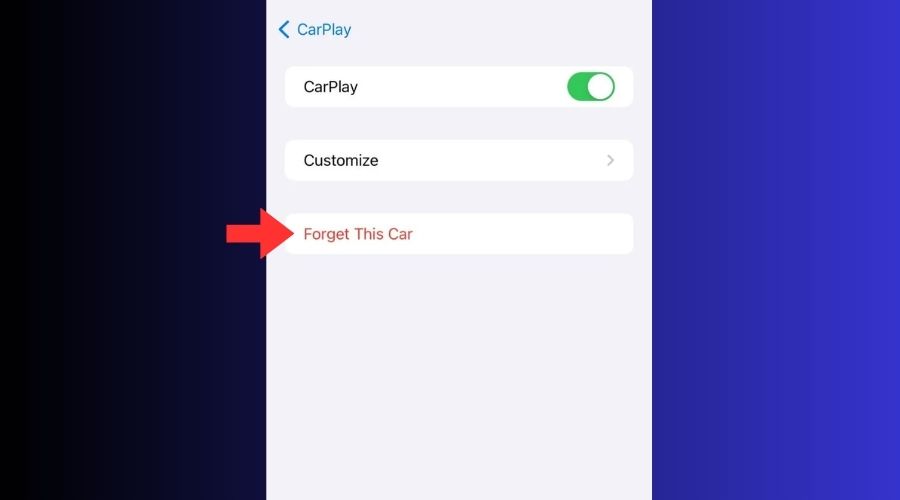
- Car head unit: remove the old iPhone profile if the menu allows it.
- Reboot your iPhone.
- Use a certified USB cable for the first pairing. Complete setup with the VPN off.
- Turn the VPN on and test again, preferably with split tunneling.
7) Reset iPhone Network Settings if Needed
- Settings > General > Transfer or Reset iPhone > Reset > Reset Network Settings.
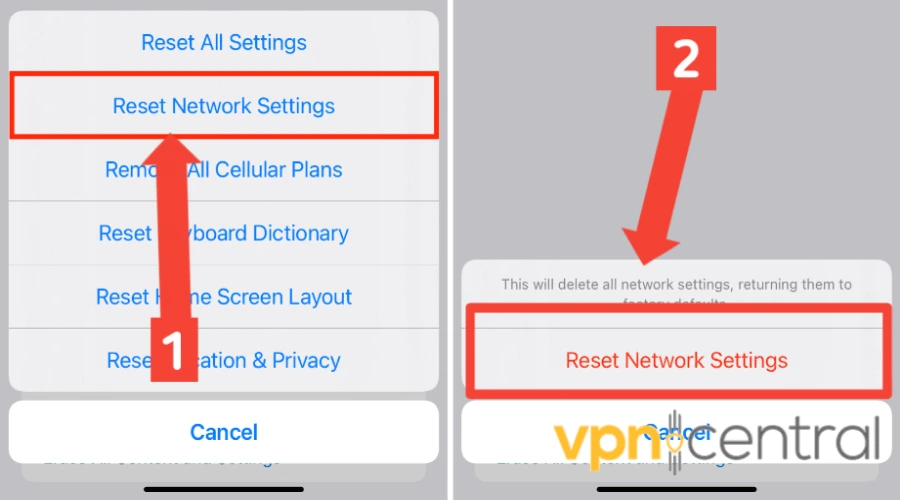
- Rejoin Wi-Fi and re-pair CarPlay.
- Re-add your VPN, enable split tunneling, then test.
This step can also solve issues like an iPhone hotspot not working with VPN.
8) Switch to a Better VPN Service
If your provider lacks split tunneling or breaks local networks, move to one that handles iOS cleanly. For background on features and limits, see this overview of VPN on iPhone.
Private Internet Access (PIA)
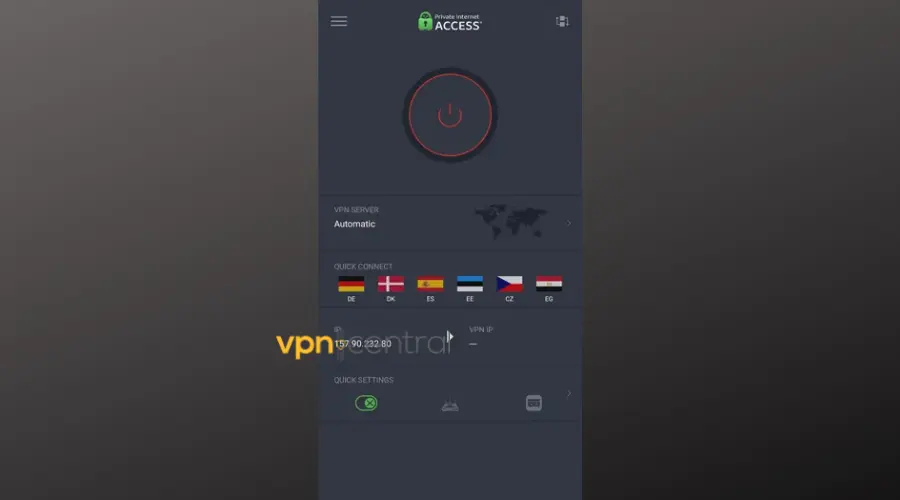
PIA offers reliable split tunneling and broad protocol support for steady CarPlay behavior.
CyberGhost
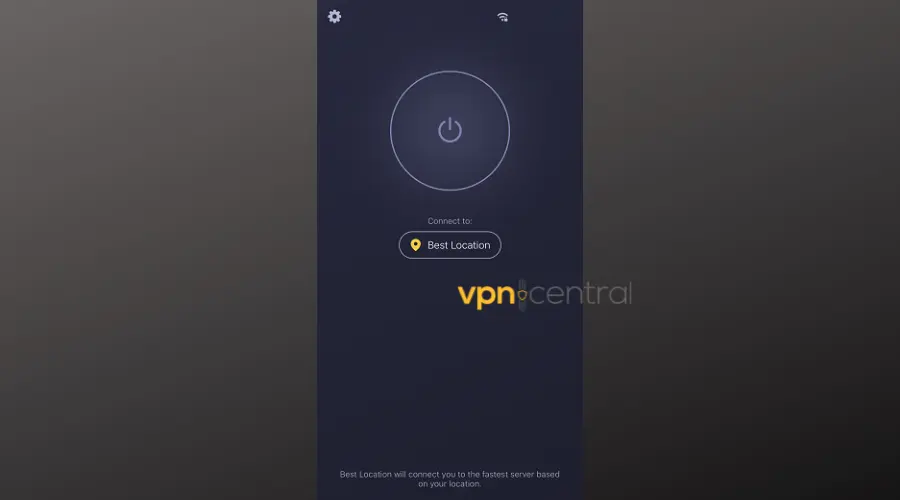
CyberGhost keeps setup simple with one-tap profiles and thousands of global servers.
NordVPN
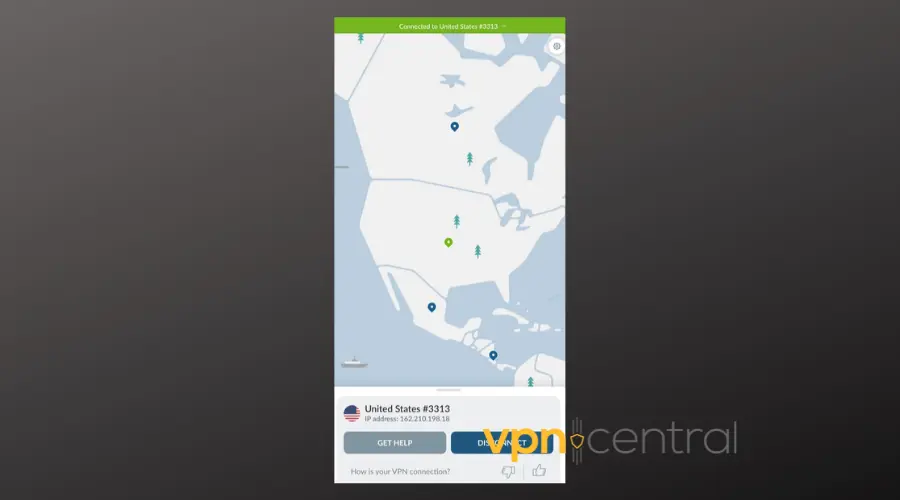
NordVPN’s NordLynx protocol is fast and consistent, and app exclusions help CarPlay apps stay direct.
Wireless vs Wired CarPlay Issues With VPN
Wireless CarPlay uses both Bluetooth and Wi-Fi. A VPN often interferes with Bonjour and multicast traffic iOS uses to detect your car’s head unit. That causes loops or failed launches.
Wired CarPlay is more stable because the USB cable gives a direct link, but VPN latency and blocked discovery can still break it.
👉 Start with wired to confirm stability, then fine-tune split tunneling and protocol before switching back to wireless.
Common CarPlay Apps That Break Under VPN
- Apple Maps / Google Maps / Waze — live traffic and routing may fail to load.
- Spotify, Apple Music, Podcasts — streaming can stutter or stop.
- Siri and Messages — voice requests may fail or delay.
- Third-party navigation — often needs uninterrupted Apple connections that a VPN blocks.
👉 Fix by enabling split tunneling so these apps bypass the VPN tunnel.
VPN Compatibility Comparison for Apple CarPlay
| VPN Service | Split Tunneling | Protocols | Speed & Stability | Best For |
|---|---|---|---|---|
| Private Internet Access (PIA) | ✔ Yes | WireGuard, OpenVPN, IKEv2 | Fast & consistent | Full control and customization |
| CyberGhost | ✔ Yes | WireGuard, OpenVPN, IKEv2 | Reliable & simple | Beginners and casual users |
| NordVPN | ✔ Yes (App exclusion) | NordLynx, OpenVPN, IKEv2 | Excellent worldwide | Power users who need speed |
👉 Choose a VPN with split tunneling to keep CarPlay running smoothly while protecting other apps.
How to Set Up a VPN for CarPlay
- Install your VPN app and sign in.
- Enable Split Tunneling. Exclude Maps, Music, Podcasts, and any CarPlay companion app.
- Turn on Allow local network devices or Bypass LAN if the app supports it.
- Set protocol to IKEv2 or WireGuard.
- Select an Auto or nearby server.
- Pair CarPlay with the VPN off once, confirm it works, then turn the VPN on and test.
- Save these options as a profile so they load each time you drive.
This setup avoids conflicts similar to Quick Share not working with VPN.
Is It Worth Using a VPN With CarPlay
Yes, if you configure it right. You gain privacy on sketchy networks and avoid throttling, but CarPlay needs low latency and local discovery. With split tunneling and a stable protocol, you keep both. Also remember, VPNs still use data on Wi-Fi, so constant use can affect your plan.
CarPlay vs Android Auto When Using a VPN
CarPlay runs stricter network rules and reacts to latency sooner. Android Auto allows more flexible exclusions and usually handles VPNs with fewer hiccups.
Conclusion
CarPlay and VPN can work together when you let CarPlay traffic stay direct. Start with split tunneling, pick a steady protocol, choose a nearby server, and keep advanced toggles off. VPNs and Apple devices/ features clash sometimes, as it does with Carplay, Apple News, Apple Mail and other features, but if you follow the proper configuration outlined above, you should be able to fix it in no time.
FAQ
The VPN changes routes and can block local discovery. CarPlay handshakes time out or fail.
Yes. Wireless adds Wi-Fi setup on top of Bluetooth, which makes it more fragile.
Start with IKEv2, then try WireGuard. If needed, test OpenVPN UDP, then TCP.
It lets selected apps skip the VPN so CarPlay connects cleanly while other apps stay private.
Yes. It removes saved Wi-Fi and VPN profiles. You can add them back after.
Some providers support domain rules, but app exclusions are simpler on iOS.


Read our disclosure page to find out how can you help VPNCentral sustain the editorial team Read more


Improve this guide




User forum
0 messages