
Apple Music Not Working With VPN: Quick Fixes And Full Guide


 12 min. read
  Published on
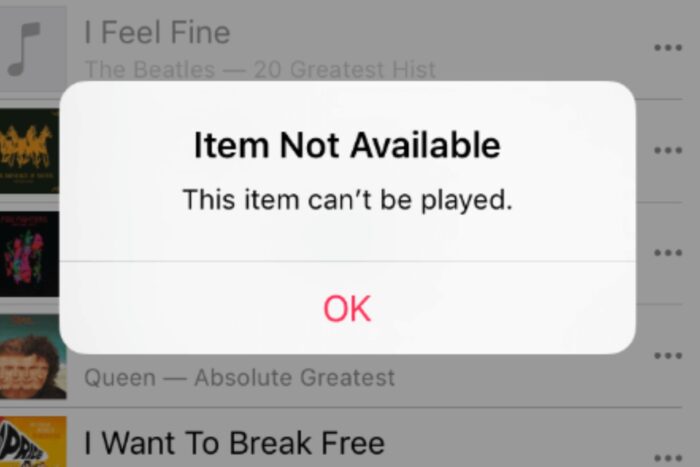
If Apple Music not working with VPN drives you crazy, you’re not alone in feeling the pain. You press play, the app spins, and nothing loads.
Sometimes you get “You’re offline.” Other times a track shows “This song is not currently available in your country or region.” This guide explains why that happens and gives you clear steps to fix it fast.
Quick fixes you can try right now (more details below)
1) Switch to a different VPN server in your Apple ID country.
2) Turn off the VPN, confirm Apple Music works, then re-enable with split tunneling.
3) Match Apple ID region, device time, and VPN location.
4) Change VPN protocol to IKEv2 or WireGuard.
5) Clear Apple Music cache, sign out, and sign back in.
6) Update iOS, the Music app, and your VPN app.
7) Disable Private Relay, ad blockers, custom DNS, and firewalls.
8) Reset network settings and flush DNS.
9) Use a better VPN with reliable streaming IPs.
10) Contact your VPN provider about Apple-friendly servers.
Table of contents
- Why Apple Music Is Not Working With a VPN
- Step By Step Fixes to Make Apple Music Work With VPN
- 1) Test Apple Music Without VPN To Confirm the Problem
- 2) Match Apple ID Region, Device Time, And VPN Location
- 3) Switch To Another VPN Server Or City For Apple Music
- 4) Change VPN Protocol To Fix Apple Music Errors
- 5) Use Split Tunneling To Bypass VPN For Apple Music
- 6) Clear Apple Music Cache And Refresh Your Library
- 7) Update iOS, Apple Music App, And Your VPN App
- 8) Disable iCloud Private Relay, Custom DNS, And Blockers
- 9) Reset Network Settings And Flush DNS For Apple Music
- 10) Reinstall Your VPN Or Try A VPN That Works With Apple Music
- Best VPNs For Apple Music Streaming Without Errors
- Does a VPN Change Which Music Is Available in Apple Music?
- Is Apple Music Available Worldwide?
- Apple Music Features That Can Break When Using a VPN
- How To Choose the Best VPN for Apple Music
- Conclusion: Fixing Apple Music Not Working With VPN
- FAQ About Apple Music And VPN Issues
Why Apple Music Is Not Working With a VPN
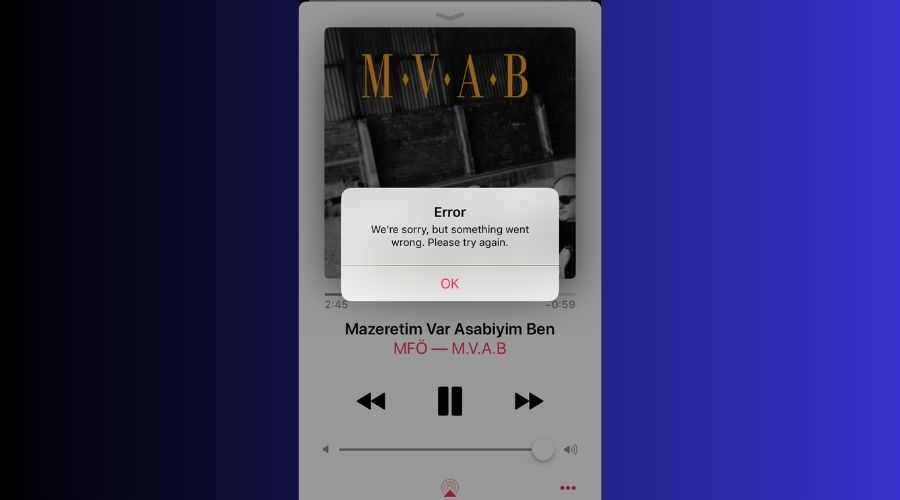
Apple Music ties your content and catalog to region rights. Your IP address signals a country. A VPN changes that signal. When the country from your VPN server does not match your Apple ID region or App Store region, Apple Music often locks the stream or hides parts of the catalog.
Apple Music VPN Issues: Common Symptoms And What They Mean
- Apple Music says “You’re offline.” The app can reach the internet, but Apple blocks the request path or your VPN drops packets. Split tunneling or a different protocol usually helps.
- “This song is not currently available in your country or region.” Your IP location and your Apple ID region send mixed signals. Apple interprets that as a rights conflict and withholds tracks.
- Albums and playlists do not load at all. Shared VPN IPs can land on blocklists. Apple and its CDNs flag some datacenter ranges.
- Downloads play, streaming does not. DRM checks and library sync calls fail while the VPN runs. Offline files still work because they already passed validation.
Typical Apple Music Error Messages When Using a VPN
- “You’re offline.”
- “An error occurred. Try again.”
- “The operation could not be completed. An unknown error occurred.”
- “Your request timed out.”
- “This song is not currently available in your country or region.”
Step By Step Fixes to Make Apple Music Work With VPN
1) Test Apple Music Without VPN To Confirm the Problem
1. Turn off your VPN.
2. Open Apple Music and play several tracks.
3. If everything works, the VPN setup causes the issue.
Why this helps: You isolate the problem. If Apple Music runs fine without the tunnel, you can focus on server choices, protocol changes, and split tunneling.
2) Match Apple ID Region, Device Time, And VPN Location
1. Check Settings > Apple ID > Media & Purchases > View Account and note your country.
2. Connect your VPN to a server in the same country.
3. Set Settings > General > Date & Time > Set Automatically.
4. Relaunch Apple Music.
Why this helps: Region and time mismatches trigger license checks to fail. You align all three signals so Apple’s backend trusts the session.
3) Switch To Another VPN Server Or City For Apple Music
1. In your VPN app, switch to another server within your Apple ID country.
2. Prefer servers labeled “Streaming,” “Residential,” or “Optimized.”
3. Reopen Apple Music and test playback.
Why this helps: Some shared IPs get flagged. Rotating to a cleaner exit IP often clears the block.
4) Change VPN Protocol To Fix Apple Music Errors
1. Open your VPN settings.
2. Try IKEv2 first. If issues persist, try WireGuard.
3. Avoid TCP-only modes for streaming if possible.
4. Reconnect and test Apple Music.
Why this helps: Protocols handle routing and packet recovery differently. IKEv2 and WireGuard usually keep latency and stability in a sweet spot for Apple’s DRM checks.
5) Use Split Tunneling To Bypass VPN For Apple Music
1. In your VPN app, open Split Tunneling or Bypass settings.
2. Add Music to the bypass list.
3. Reconnect your VPN and open Apple Music.
Why this helps: You keep your VPN protection for the rest of your traffic while letting Apple Music connect directly. This bypasses region checks tied to VPN IPs.
> If your VPN on iPhone does not route specific apps correctly, check a broader guide like this one on troubleshoot a VPN not working on iPhone, which walks through system-wide conflicts and app behavior.
6) Clear Apple Music Cache And Refresh Your Library
iPhone or iPad
1. Open Settings > Music.
2. Toggle Sync Library off, wait 30 seconds, toggle it back on.
3. Force close Music, then reopen.
4. If issues persist, sign out of Media & Purchases, restart, and sign back in.
Mac
1. Open Music.
2. From the menu, sign out of your account.
3. Quit Music, restart your Mac, sign back in.
Why this helps: You reset local tokens and refresh the library handshake, which often fails through some VPN routes.
7) Update iOS, Apple Music App, And Your VPN App
1. Go to Settings > General > Software Update.
2. Update your VPN app in the App Store.
3. Open the App Store and update Apple Music if an update shows.
4. Reboot and test again.
Why this helps: Apple and VPN providers ship networking fixes often. You reduce bugs that break stream authorization. This also helps when Apple Carplay won’t work with VPN.
8) Disable iCloud Private Relay, Custom DNS, And Blockers
1. If you use iCloud Private Relay, turn it off under Apple ID > iCloud > Private Relay.
2. Remove custom DNS profiles and system-wide filters.
3. Pause content blockers or firewall apps.
4. Reconnect VPN and test Music.
Why this helps: Multiple layers that rewrite DNS or proxy traffic can confuse Apple’s endpoints. You keep the path clean.
> For context on how VPN data flows behave on Wi Fi and what counts toward usage, see does a VPN use data on Wi Fi. It also explains background traffic you might not expect.
9) Reset Network Settings And Flush DNS For Apple Music
iPhone or iPad
1. Go to Settings > General > Transfer or Reset iPhone > Reset.
2. Tap Reset Network Settings.
3. Reconnect Wi Fi, then the VPN, and test Music.
Mac
1. Turn Wi Fi off and back on.
2. Open Terminal and run sudo dscacheutil -flushcache; sudo killall -HUP mDNSResponder.
3. Reconnect VPN and test.
Why this helps: You clear stale DNS, routes, and captive portal leftovers that choke secure streams.
> If your hotspot sits between your phone and another device, and Apple Music fails only in that setup, you may hit a passthrough bug. See iPhone hotspot VPN not working for targeted steps.
10) Reinstall Your VPN Or Try A VPN That Works With Apple Music
1. Remove the VPN app.
2. Restart the device.
3. Install it fresh or try a small trial from a streaming-friendly provider.
4. Test with servers in your Apple ID country.
Why this helps: Clean installs remove broken profiles and old tunnel drivers. Some providers also maintain IP pools that Apple trusts more.
> Side note: if other Apple services break only when the VPN runs, this guide for App Store not working with a VPN shows extra toggles that also apply to Music.
Best VPNs For Apple Music Streaming Without Errors
If your current VPN keeps tripping Apple’s checks, upgrade. Pick services with strong iOS apps, stable IKEv2 or WireGuard, and a record of working with music streaming.
- ExpressVPN
ExpressVPN runs fast on iPhone and supports split tunneling on many platforms. Lightway and IKEv2 keep latency low, which helps DRM checks pass. The network rotates IPs often to dodge blocklists, and the app makes server switching quick. If a U.S. node misbehaves, you can move to another city in seconds. - NordVPN
NordVPN’s Meshnet and smart routing give you lots of control. Its WireGuard-based protocol cuts jitter, so streams start quick and stay smooth. The app supports per app rules on Android and desktop, and the server list has many U.S. and EU cities. That variety helps you match your Apple ID region cleanly. - Surfshark
Surfshark brings unlimited devices, so you can protect your phone, car head unit, and laptop together. It offers reliable WireGuard and smart DNS options for tricky networks. The app’s Bypasser feature makes split tunneling simple, which often fixes the “You’re offline” stubbornness in Apple Music.
> If you also share media between devices, you might face blocks with nearby features on some phones. See a related walkthrough on fixing Quick Share not working with a VPN to understand local network exclusions.
Does a VPN Change Which Music Is Available in Apple Music?
Yes. A VPN changes your apparent location. Apple Music licenses vary by country. When your VPN shows a different country than your Apple ID region, you can lose tracks, albums, or radio stations. You might also see different charts and recommendations. Matching your VPN location with your Apple ID country keeps the catalog stable.
For deeper troubleshooting of Apple Music’s region behavior, check this guide to Apple Music not available in region, which covers account settings and region switches.
Is Apple Music Available Worldwide?
Apple Music covers most countries, but not every territory. Catalogs also vary because of local licensing. Even in supported countries, some tracks or explicit versions can disappear. If your travel or VPN location puts you in a country where licensing looks different from your Apple ID profile, Apple Music can limit playback or show “unavailable” notices.
Apple Music Features That Can Break When Using a VPN
- Streaming playback: region locks and IP blocks hit this first.
- Search and Browse: catalog changes by location change results.
- Radio and stations: some stations or shows vanish outside your home region.
- Sync Library: verification calls time out when the route looks risky.
- Downloads and offline play: existing downloads usually play, but new downloads can fail while the VPN runs.
- Device authorization: sign in prompts can loop if your IP keeps changing countries.
How To Choose the Best VPN for Apple Music
Use practical, expert criteria. Here is how to think about it in plain language.
- Region alignment controls – Pick a VPN with many cities in your Apple ID country. You need easy server switching to land on a clean IP quickly.
- Stable, low latency protocols – Ensure it offers IKEv2 and WireGuard. Both start fast and hold a steady connection, which helps Apple’s DRM checks.
- Split tunneling on your devices – You want per app bypass. Route Apple Music outside the tunnel while the rest of your traffic stays protected.
- Clean IP pools and fast rotation – Look for providers that refresh IPs often and offer streaming-optimized servers. That reduces “offline” errors and catalog blocks.
- Good iOS and macOS apps – The app should reconnect fast when you move between Wi Fi and cellular. That handoff keeps the Music app from stalling.
- Transparent support – Pick a provider with live chat that will confirm which locations work best for Apple services.
> If your VPN fails only on cellular or when you tether, check how iOS handles tunnels. This primer on using a VPN on iPhone covers setup basics that prevent profile conflicts.
Conclusion: Fixing Apple Music Not Working With VPN
Apple Music and VPNs can work together, but you need to line up region, time, and routing. Start with the quick list: match regions, switch servers, change protocol, and try split tunneling. Clear caches, update apps, and remove extra network layers like Private Relay. If your provider still struggles, move to a VPN with cleaner streaming IPs and solid iOS support. Once you dial these in, Apple Music plays smoothly while your privacy stays intact.
FAQ About Apple Music And VPN Issues
Your VPN changes your apparent country. Apple ties music rights to regions. If your VPN location does not match your Apple ID region, Apple can block streams or hide tracks. Shared VPN IPs can also land on blocklists, which forces the app to act like it is offline.
Yes, but availability changes by country. If you travel and sign in from a different country than your Apple ID region, Apple might restrict some songs or radio stations. Align the country on your device and your Apple ID, or use a VPN server in your home country to keep the same catalog.
You likely see a region mismatch. Local licensing in your travel country differs from your Apple ID country. Connect your VPN to a server in your Apple ID region, set time and region automatically, and restart the Music app. That usually restores your home catalog.
A recent change often triggered it. Your VPN server IP got flagged, a protocol update broke routing, or system time drifted. Rotate to another server in your Apple ID country, switch to IKEv2 or WireGuard, and clear Apple Music’s cache. Updates to iOS, the Music app, or your VPN app also help.


Read our disclosure page to find out how can you help VPNCentral sustain the editorial team Read more


Improve this guide




User forum
0 messages