
How to Fix Discovery Plus Not Working With VPN


 6 min. read
  Published on

If Discovery Plus is not working with a VPN that interrupts your streaming, you can fix it quickly.
Try switching servers, clearing cache and cookies, changing VPN protocols, and using a VPN with streaming-optimized servers. This guide explains why Discovery Plus blocks VPNs and shows 10 practical fixes that restore access fast.
Table of contents
- Why Discovery Plus Blocks VPNs
- Step-by-Step Fixes for Discovery Plus VPN Problems
- 1. Switch to a different VPN server
- 2. Clear browser cache and cookies
- 3. Use Incognito or Private mode
- 4. Change the VPN protocol
- 5. Flush your DNS cache (Windows)
- 6. Disable location services
- 7. Update your VPN app
- 8. Try another device or browser
- 9. Restart your router
- 10. Use a better VPN for Discovery Plus
- Discovery Plus Availability and Features
- Picking the Best VPN Tool for Discovery Plus
- Conclusion
- FAQs
Why Discovery Plus Blocks VPNs
Discovery Plus enforces strict licensing rules that limit where shows can stream. To protect those agreements, the service uses technology that detects and blocks VPNs. Key reasons include:
- Licensing agreements: Discovery Plus only has rights to show some content in specific countries.
- Shared IP addresses: Many VPN users connect through the same IP, which makes it easy to identify as VPN traffic.
- DNS or WebRTC leaks: If your VPN leaks data, Discovery Plus can see your real region.
- Cached location data: Stored cookies or app data may reveal your original country.
- Advanced anti-VPN technology: The platform regularly updates detection systems to block known VPN servers.
Symptoms
- Playback errors that stop shows from starting.
- Region messages such as “Discovery Plus is not available in your region.”
- Black screen in the player.
- Endless loading spinner.
- Login failures despite correct credentials.
- Content unavailable notices.
Typical errors
You may see “Playback failed,” generic Error 400, or similar regional lock messages. Discovery Plus detects VPN IP ranges, reads cached location data, or spots DNS and WebRTC leaks. Frequent anti-VPN updates also catch weak providers.
Step-by-Step Fixes for Discovery Plus VPN Problems
1. Switch to a different VPN server
- Open your VPN app.
- Disconnect from the current server.
- Select another server in the same country, such as a different U.S. city.
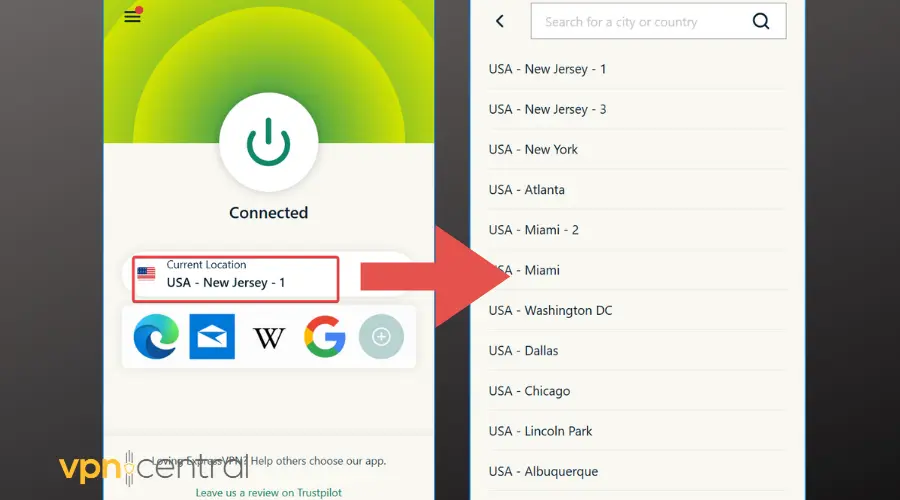
- Refresh Discovery Plus and try streaming again.
Why this helps: Discovery Plus blocks specific IPs. A new server gives you a clean IP that avoids the blacklist.
2. Clear browser cache and cookies
- Open your browser.
- Press Ctrl + Shift + Delete on Windows or Command + Shift + Delete on Mac.
- Select Cookies and Cached files.
- Click Clear data and restart the browser.
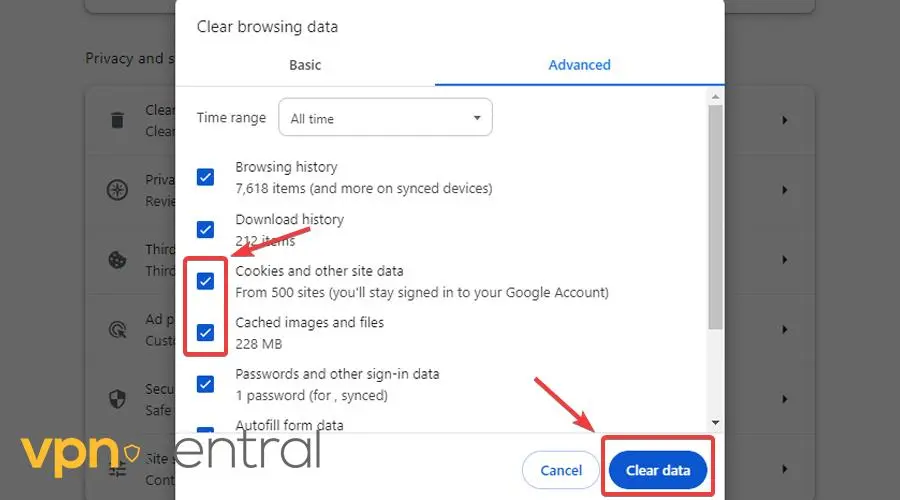
- Log in to Discovery Plus with your VPN active.
Why this helps: Cookies and cache can reveal your real region. Clearing them removes location traces that trigger blocks.
3. Use Incognito or Private mode
- In Chrome, press Ctrl + Shift + N.
- In Firefox or Edge, press Ctrl + Shift + P.
- Visit Discovery Plus and sign in while your VPN stays connected.
Why this helps: Private windows ignore most stored cookies and sessions that expose your location.
4. Change the VPN protocol
- Open your VPN settings.
- Find Protocol in Advanced options.
- Switch from Automatic to OpenVPN UDP or WireGuard.
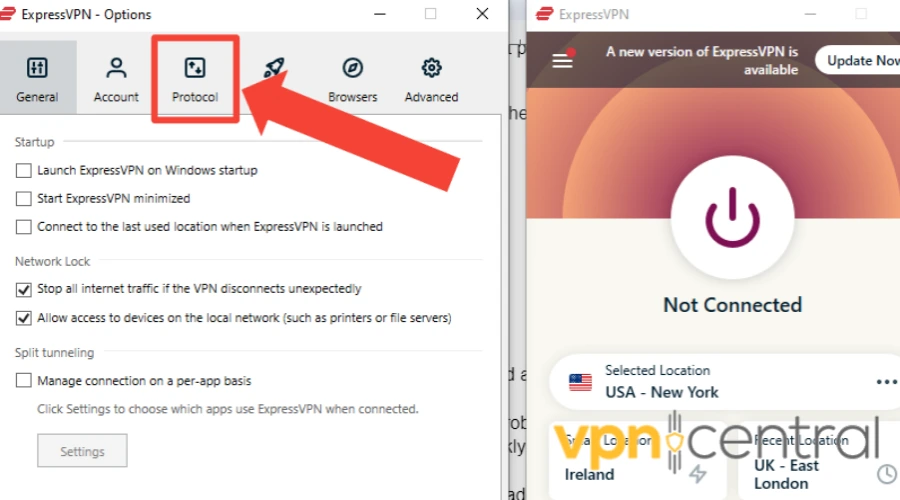
- Reconnect and reload Discovery Plus.
Why this helps: Some protocols handle streaming traffic better and slip past detection more reliably.
5. Flush your DNS cache (Windows)
- Press Win + R, type cmd, and press Enter.
- Run
ipconfig /flushdns.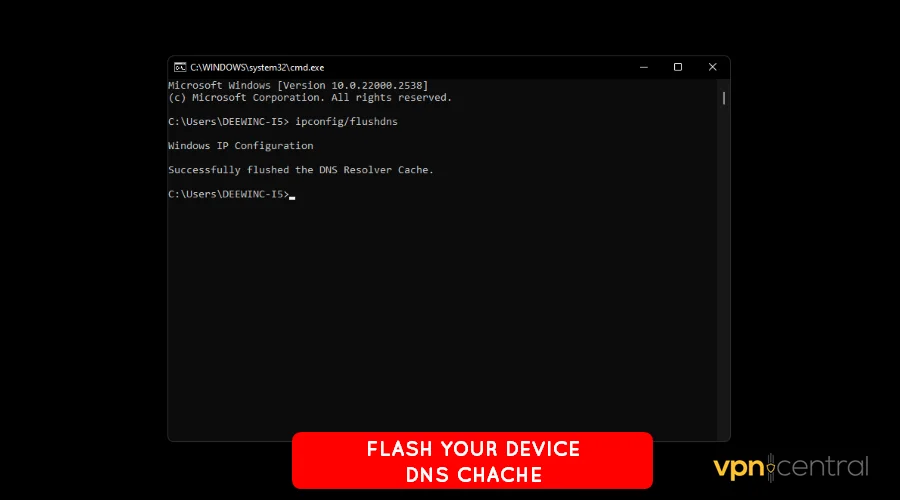
- Restart your browser and test Discovery Plus.
Why this helps: Flushing DNS removes cached lookups that can point to your real location.
6. Disable location services
- Windows: Settings → Privacy → Location → turn Off.
- Mac: System Settings → Privacy & Security → Location Services → turn Off.
Why this helps: Location services can override your VPN tunnel and reveal your true region.
7. Update your VPN app
- Open the VPN app.
- Go to Settings → Check for updates.
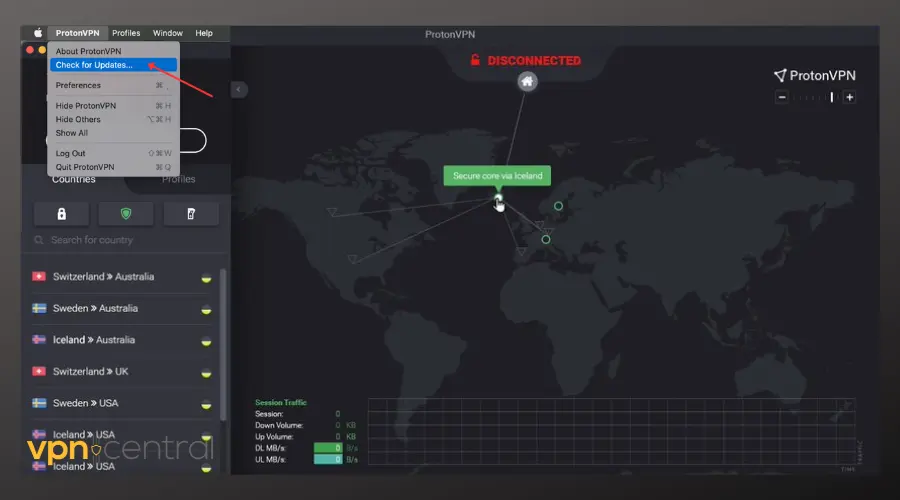
- Install the update and reconnect.
Why this helps: Providers ship new servers and fixes that improve streaming access and stability.
8. Try another device or browser
- Test Chrome, Firefox, Edge, or Safari.
- Install the Discovery Plus app on your phone or tablet and sign in with your VPN connected.
Why this helps: Different platforms handle cookies, DRM, and DNS in different ways. A second device often clears conflicts fast.
9. Restart your router
- Turn the router off.
- Wait 30 seconds.
- Turn it back on, reconnect your VPN, and try streaming.
Why this helps: A clean network session and a new WAN IP resolve many routing and DNS conflicts.
10. Use a better VPN for Discovery Plus
If all else fails, consider changing your VPN. You may be using a tool that’s not optimized for streaming and easy to block. Instead, look for a provider that has strong servers, powerful encryption and top notch features to stay under the radar.
ExpressVPN is one top choice in this matter, and it maintains streaming-optimized servers, refreshes IP ranges often, and delivers fast speeds for HD and 4K. It works across desktops, phones, tablets, and many smart TVs, so you can stream comfortably at home or while traveling.

ExpressVPN
Get streaming-optimized VPN servers for uninterrupted Discovery Plus access!Discovery Plus Availability and Features
Discovery Plus carries popular titles such as Deadliest Catch, MythBusters, 90 Day Fiancé, and Planet Earth. Licensing limits libraries by country, so catalogs vary across regions. When the VPN fails, you lose access to shows, watchlists, and cross-device syncing on web, mobile, and smart TVs.
Need details on geo-restrictions and regions? Read Discovery Plus not available in location.
Picking the Best VPN Tool for Discovery Plus
- Streaming-optimized servers: Prefer providers that label media locations and rotate IPs frequently.
- Fast speeds: Aim for stable HD and 4K playback with low latency.
- Leak protection: Use DNS and WebRTC leak blocking to protect your region.
- Cross-device apps: Install on desktop, mobile, TV, and routers for consistent access.
ExpressVPN meets these needs and maintains strong uptime with Discovery Plus.
Conclusion
Discovery Plus blocks many VPNs to protect licensing, but you can restore access with the right steps. Rotate servers, clear cookies, change protocols, and disable location services. For the most consistent results, use ExpressVPN and enjoy favorites like Deadliest Catch and MythBusters wherever you travel.
FAQs
Discovery Plus enforces regional licensing. The service identifies VPN IP ranges, cached locations, and leaks, then blocks access to protect rights.
You may see “Discovery Plus is not available in your region,” playback failures, black screens, endless loading, or codes like Error 400.
Free VPNs reuse limited IPs that services block quickly. They also throttle speeds and struggle with HD streaming.
Switch servers, clear cookies, use Incognito, change protocols, flush DNS, and disable location services. If problems continue, use ExpressVPN.
ExpressVPN works best. It offers streaming-optimized servers, frequent IP refresh, and strong leak protection.
Yes. Connect to a supported region with ExpressVPN, sign in, and stream your usual library from abroad.


Read our disclosure page to find out how can you help VPNCentral sustain the editorial team Read more


Improve this guide



User forum
0 messages