
How to Fix Proxy Error 429 (Step-by-Step)


 5 min. read
  Updated on
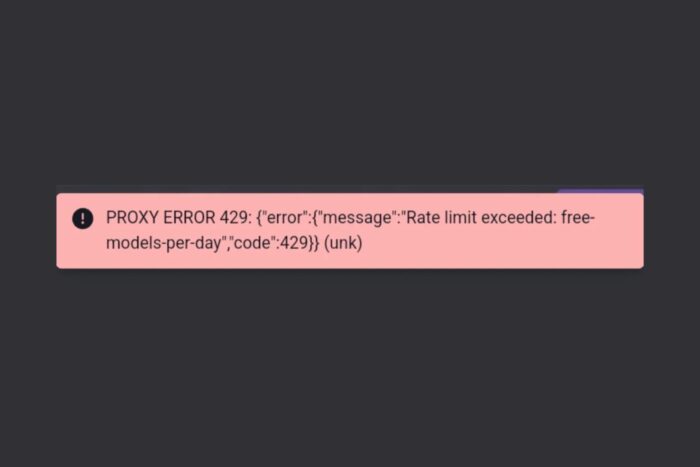
Running into a Proxy Error 429 can be frustrating, especially when it interrupts your browsing or app activity. This error, often labeled “Too Many Requests”, appears when a server or proxy thinks you’re sending requests too quickly. For everyday users, it might happen while refreshing a page too often, using a VPN, or even keeping too many tabs open at once.
The good news? It’s not a permanent block. With a few simple fixes and better browsing habits, you can get back online quickly and prevent the error from coming back.
What Is Proxy Error 429?
Table of contents
A Proxy Error 429 means the proxy or API gateway thinks you’re sending too many requests in a short time. The proxy sits between your browser (or app) and the website. When the rate limit is exceeded, it blocks you with HTTP status code 429 Too Many Requests.
- Rate limits exceeded by repeated requests.
- Background apps or browser extensions sending too many calls.
- Shared VPN/proxy IPs hitting limits.
- Misconfigured or overly strict proxy settings.
For example, some platforms restrict certain setups due to reverse proxy security concerns, which can make the issue appear more often if the proxy isn’t configured properly. You may also encounter a related symptom, a proxy error with no response from bot, when anti-bot filters or rate limits kick in.
Step-by-Step Fixes for Proxy Error 429
- Pause and retry
Stop refreshing for a while. Wait a few minutes, then reload the page once instead of spamming refresh.
- Close duplicate tabs and apps
Shut down multiple tabs hitting the same site. Turn off auto-refresh tools, download managers, or price trackers.
- Disable noisy extensions
Go to your browser’s Extensions menu. Turn off ad blockers, auto-refreshers, or scraping add-ons. Reload the site.
- Turn off page preloading
In Chrome/Edge, search for “preload” in settings and disable it. This prevents hidden background requests.
- Clear cookies and cache
Click the site icon in the browser address bar → Site settings → Clear cookies and data. If that fails, use “Clear browsing data” for Cookies and Cache.
- Change your IP address
‣ Disconnect your VPN or proxy and retry.
‣ Switch to another VPN server or location.
‣ Reboot your router to get a new IP.
‣ Use a mobile hotspot to test another network.
If you often rely on proxies, choose a reliable proxy service that offers more stable connections. Using premium options such as undetectable proxies or datacenter proxies can reduce the chance of hitting shared limits.
If you prefer VPNs, providers with built-in proxy servers, like those in this guide on the best VPN with proxy servers, give you more flexibility.
➡️ For everyday browsing, ExpressVPN is also a solid choice because it offers a large network of fast, reliable servers. - Slow down your actions
Avoid rapid clicks and refreshes. Scroll normally and take time between interactions.
- Sign out and back in
If the limit is tied to your account, logging out and back in after a cooldown often helps.
- Try another browser or device
Switch to Firefox, Edge, or Safari. Or test on your phone to rule out browser profile issues.
- Update your app or browser
Install the latest version—updates often fix bugs that cause excess background requests.
- Check for background automation
Disable hidden apps like tab reloaders, RSS checkers, or “deal notifiers” that may ping the site.
- Contact support
If it only happens on one website, reach out to their support with your IP and error details.
How to Prevent Proxy Error 429
Fixing the error once is good, but prevention saves time. Adopt these simple habits:
Browser habits
- Don’t use auto-refresh extensions.
- Limit open tabs on the same site.
- Turn off “Continue running background apps.”
Network & VPN
- Stick with one stable VPN server.
- Use residential or rotating IPs if you need frequent requests. For instance, developers can benefit from tools like the best rotating proxies for GitHub, which spread requests more evenly.
- Only reset your IP when blocked, not constantly.
- A reliable VPN like ExpressVPN makes it easier to switch servers quickly while keeping a consistent connection.
Account usage
- Respect service rate limits and API quotas.
- Upgrade to paid plans if you need higher limits.
- Avoid sharing accounts across too many devices.
Device hygiene
- Close apps that repeatedly ping websites.
- Keep apps and browsers updated.
- Log out from services if idle.
If you use proxies regularly at home, it helps to follow a guide on how to use a proxy server at home safely without triggering rate limits. Some regions even benefit from local options such as the best proxies for Fort Lauderdale in 2025, which reduce latency and improve performance.
✅ Bottom line:
Treat sites gently, keep your browsing human-like, and manage your VPN/proxy settings carefully to avoid looking like a bot.
FAQs About Proxy Error 429
No. It usually clears after a cooldown (a few minutes to hours).
Yes, if many people share the same VPN IP. Switching servers often fixes it. A premium provider like ExpressVPN reduces the risk of shared overload.
That depends on your use case. For general browsing, a trusted proxy server is enough. If you want automation, rotating proxies are better. For speed, datacenter proxies work well.
Usually, no. The block targets your IP, not your account. But repeated abuse can escalate.
Wait 10–15 minutes, then retry with a new IP if needed.
No. 429 means you’ve hit a rate limit (too many requests). 401 is an authentication failure (e.g., invalid/expired token). For Janitor AI specifically, follow this guide: fix Proxy Error 401 in Janitor AI.


Read our disclosure page to find out how can you help VPNCentral sustain the editorial team Read more


Improve this guide


User forum
0 messages