
Safari Not Working With VPN: How to Fix It Fast


 8 min. read
  Published on
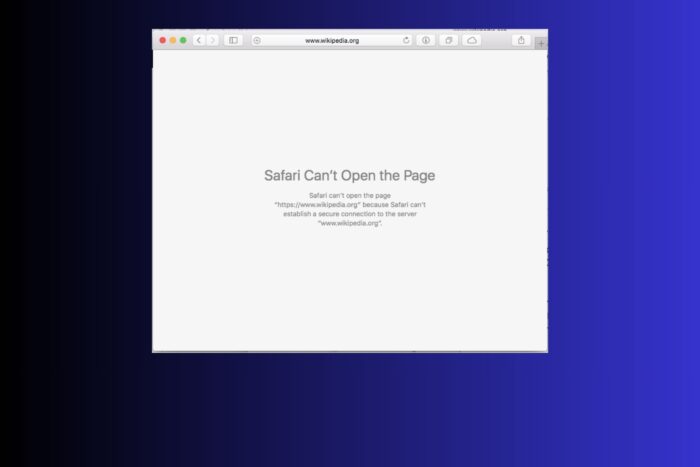
The Safari browser not working with a VPN is a common problem among iPhone, iPad and Mac users. If it’s happening to you, you’re probably familiar with error messages like “Safari can’t establish a secure connection”. Or, perhaps even more annoying, you’re hitting endless captchas saying “Our systems have detected unusual traffic from your computer network”.
While Safari may not be a VPN’s best friend, the good news is that there are a few ways in which you can make sure it’ll work. Follow the step-by-step instructions below to quickly fix Safari not working with VPN.
Table of contents
- Why Safari Isn’t Working With VPN
- How to Fix Safari Not Working With VPN
- Fix 1: Confirm the Safari Error and VPN Problem
- Fix 2: Restart Safari and Test a Different Network
- Fix 3: Renew IP Address and Flush DNS
- Fix 4: Change VPN Protocol for Compatibility
- Fix 5: Disable Private Relay and Adjust Safari Privacy Settings
- Fix 6: Check Split Tunneling to Include Safari
- Fix 7: Clear Safari Cache, Cookies, and Website Data
- Fix 8: Test in a Private Window and Disable Extensions
- Fix 9: Switch to a Different VPN Server
- Fix 10: Update or Reinstall VPN and Safari
- Fix 11: Switch to Another VPN (Recommended)
- Best VPNs That Work Well With Safari
- Does Safari Block VPNs on Purpose
- Conclusion
- FAQ
Why Safari Isn’t Working With VPN
Safari can have trouble when a VPN is on because the browser and VPN handle internet traffic in different ways. When a VPN changes your IP address or DNS settings, Safari might show errors or security warnings. If your VPN shares an IP with many other users, you may run into captchas or “unusual traffic” messages, especially on sites like Google.
Some VPNs act like a middleman to check HTTPS traffic, and Safari will block a page if the certificate doesn’t match. If split tunneling is set up incorrectly, Safari might bypass the VPN or send all traffic through it, causing pages not to load.
On top of that, Safari’s privacy features, like Private Relay and Intelligent Tracking Prevention, can sometimes clash with VPN connections or newer web protocols, making pages slow or impossible to open.
How to Fix Safari Not Working With VPN
Fix 1: Confirm the Safari Error and VPN Problem
Steps:
- Disable your VPN.
- Open Safari and check the error message.
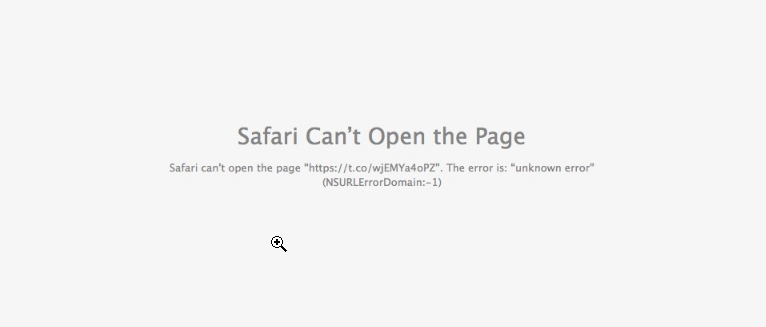
- Test the same site in another browser like Chrome or Firefox.
Identifying the exact Safari error ensures you do not waste time on unrelated fixes.
A DNS error points toward IP or network issues, while a TLS or certificate warning points toward VPN interception or HTTPS conflicts.
Testing the site in another browser helps determine whether the problem is Safari-specific or affects all browsers with the VPN. For detailed iPhone VPN troubleshooting, check VPN not working on iPhone.
Fix 2: Restart Safari and Test a Different Network
Steps:
- Turn off your VPN.
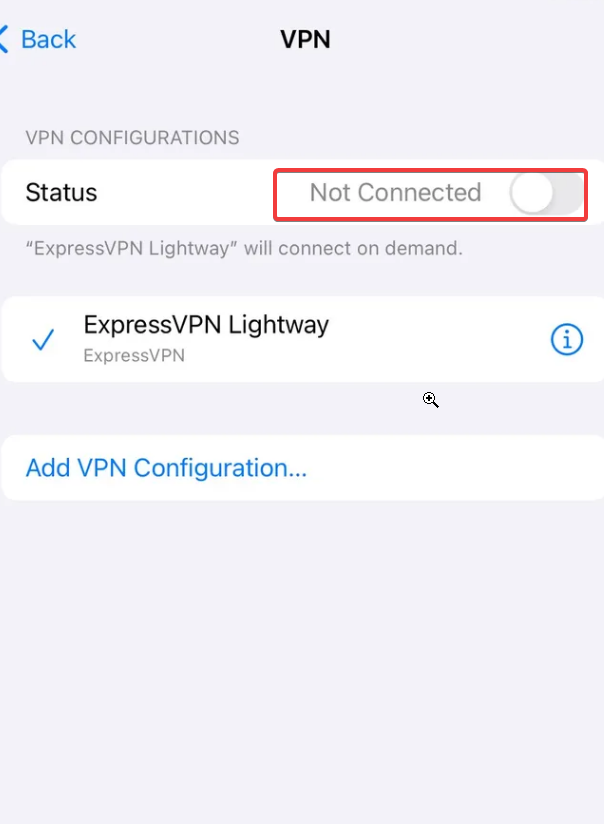
- Close Safari completely and reopen it.
- If the site works without VPN, turn the VPN back on and test again.
- Try a different network, such as a phone hotspot.
Restarting Safari and testing a different network clears temporary network or device states that may interfere with VPN traffic.
Routers, firewalls, or Wi-Fi configurations can sometimes block VPN connections or QUIC traffic. Trying a different network helps determine if the issue is with your VPN, ISP, or device.
Fix 3: Renew IP Address and Flush DNS
iPhone Steps:
- Settings → Wi-Fi → tap the network → Renew Lease.
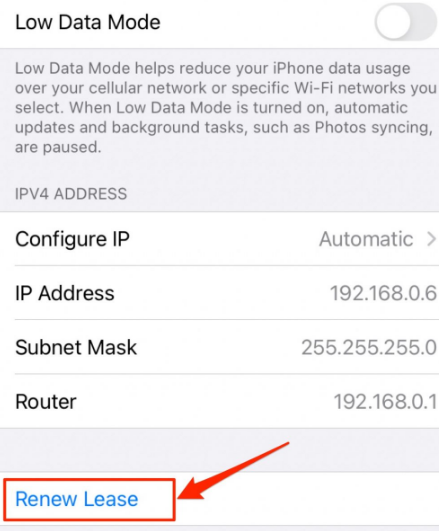
- Settings → Safari → Clear History and Website Data.
- Turn VPN off and on.
macOS Steps:
- System Settings → Network → Wi-Fi → Details → Renew DHCP Lease.
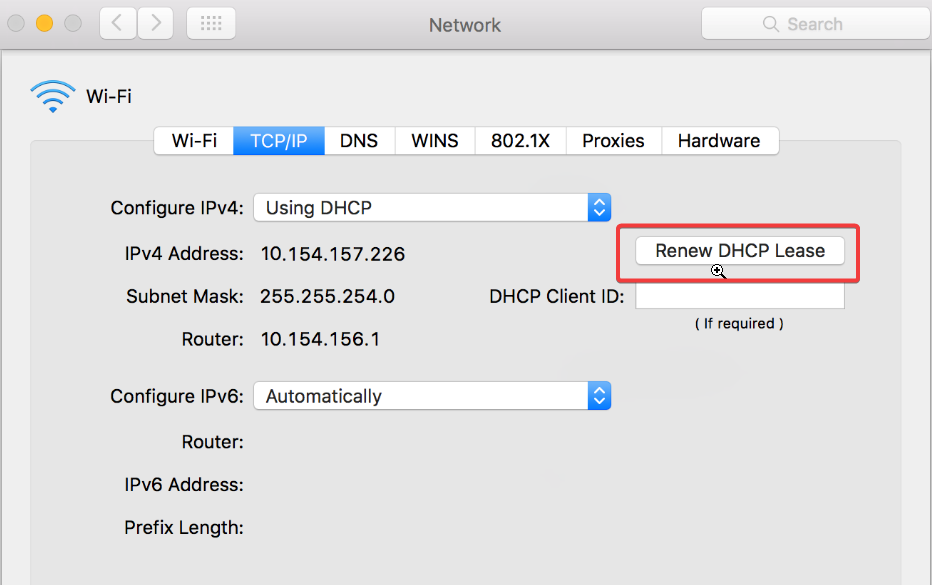
- Safari → History → Clear History.
- Restart VPN and Safari.
VPNs modify IP addresses and DNS servers to route traffic securely. Cached DNS entries or old IP information can cause Safari to connect to outdated paths, resulting in failed page loads or certificate mismatches. Renewing IP and clearing DNS ensures Safari requests fresh network information.
Fix 4: Change VPN Protocol for Compatibility
Steps:
- Open your VPN app → Settings → Protocol.
- Switch to TCP-based options like OpenVPN TCP or IKEv2.
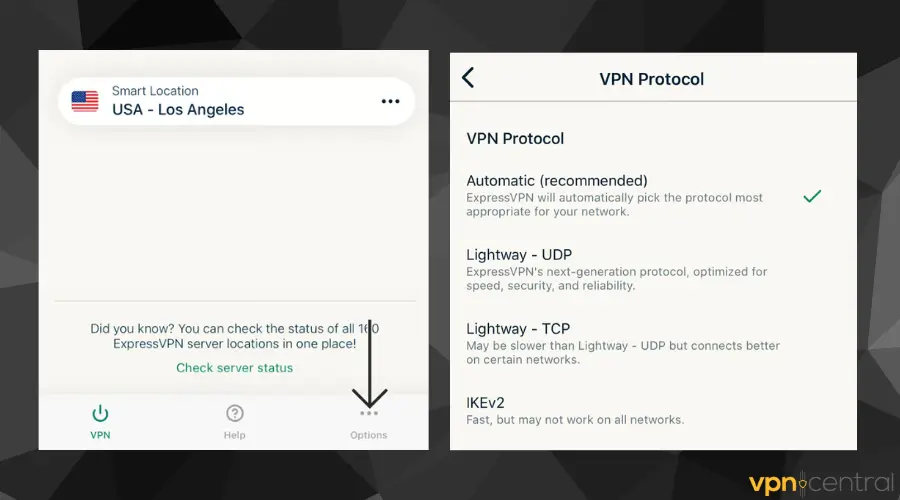
- Reconnect and test Safari.
Different VPN protocols handle data and encryption differently. UDP-based protocols such as WireGuard or QUIC can be blocked or mishandled by networks or firewalls, causing Safari to fail. Switching to TCP provides a more reliable, widely supported connection compatible with Safari.
Fix 5: Disable Private Relay and Adjust Safari Privacy Settings
Steps:
- iPhone: Settings → Apple ID → iCloud → Private Relay → Off.
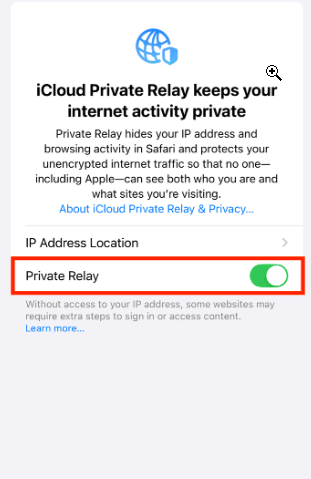
- Safari Settings → Temporarily disable “Prevent Cross-Site Tracking.”
- Restart Safari.
Safari’s privacy features can alter t raffic routing or identification. When a VPN is active, these measures may interfere with the encrypted connection or trigger certificate conflicts. Disabling them temporarily ensures Safari and VPN traffic do not collide.
Fix 6: Check Split Tunneling to Include Safari
Steps:
- VPN app → Split Tunneling or App Exclusions.
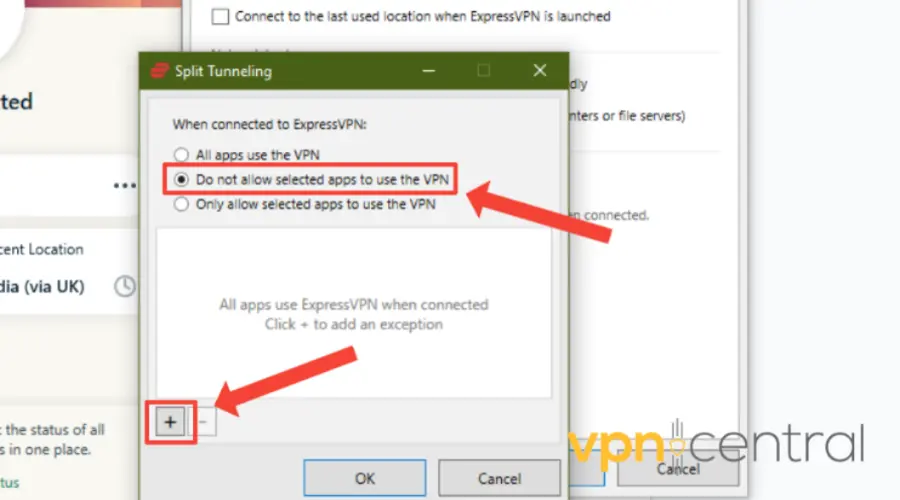
- Ensure Safari is included in the VPN tunnel.
- Reconnect and test.
Split tunneling controls which apps use the VPN. If Safari is excluded, its traffic bypasses the VPN and may be blocked or trigger captchas. Including Safari ensures correct routing and prevents misconfigured traffic paths.
Fix 7: Clear Safari Cache, Cookies, and Website Data
iPhone Steps:
- Settings → Safari → Clear History and Website Data.
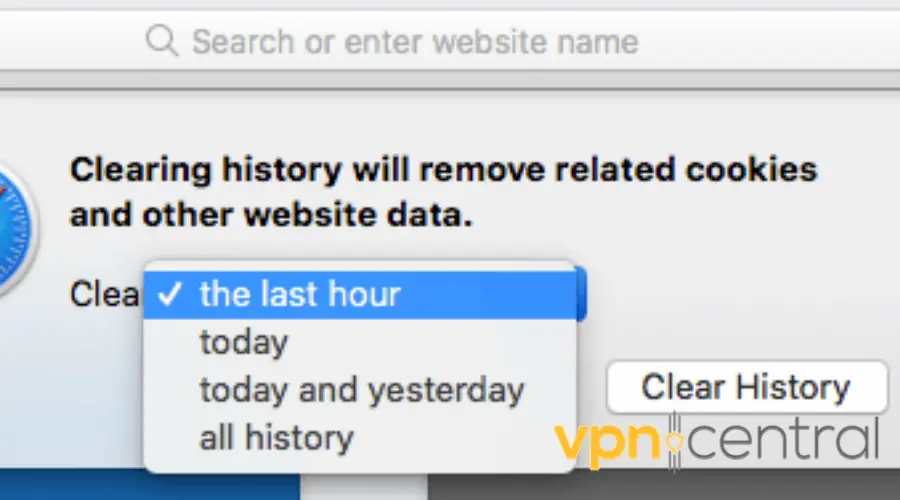
- Restart Safari.
macOS Steps:
- Safari → Settings → Privacy → Manage Website Data → Remove All.
- Develop menu → Empty Caches.
- Restart Safari.
Why it helps: Cached files, cookies, or stored website data can conflict with a new VPN connection. Stale session data can cause certificate mismatches or failed logins. Clearing caches forces fresh connections and updated certificates.
Fix 8: Test in a Private Window and Disable Extensions
Steps:
- Open Safari private/incognito window.
- Test the site with VPN on.
- If it works, disable extensions one by one: Settings → Extensions.
Why it helps: Extensions can inject scripts or modify traffic, interfering with VPN connections. Private mode disables extensions and caches, creating a clean testing environment.
Fix 9: Switch to a Different VPN Server
Steps:
- Pick a different server in your VPN app.
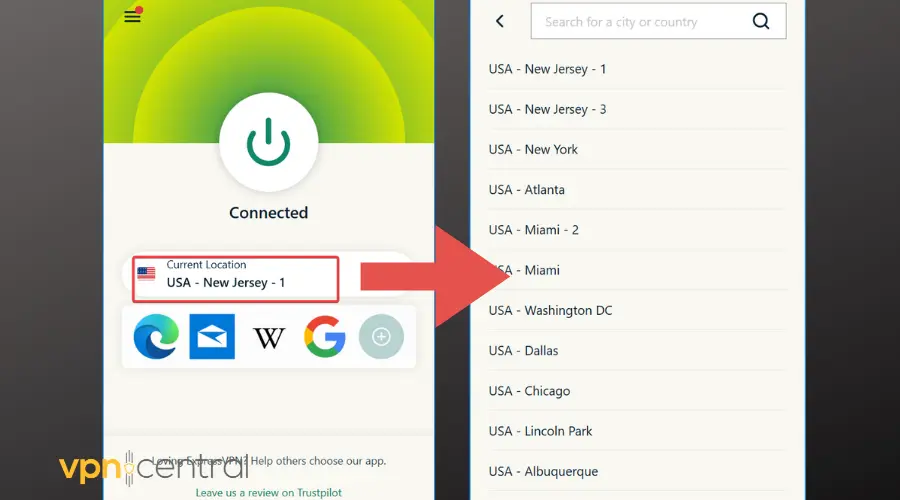
- Reconnect and test.
- For frequent captchas, try servers with dedicated IPs.
Shared VPN IPs are often flagged for suspicious activity. Switching servers changes your IP and path, bypassing captchas and blocks.
For tips on fixing apps like Apple News when VPN blocks content, see how to fix Apple News not working with VPN.
Fix 10: Update or Reinstall VPN and Safari
Steps:
- Update macOS/iOS and Safari.
- Update the VPN app.
- If unresolved, uninstall and reinstall the VPN.
- Updates fix networking bugs and VPN integration issues. Reinstalling clears corrupted settings, ensuring compatibility with modern protocols like HTTP/3 and QUIC.
Fix 11: Switch to Another VPN (Recommended)
Steps:
- Install ExpressVPN if your current VPN conflicts with Safari.
- Connect to a nearby server and test Safari on Wi-Fi and cellular.
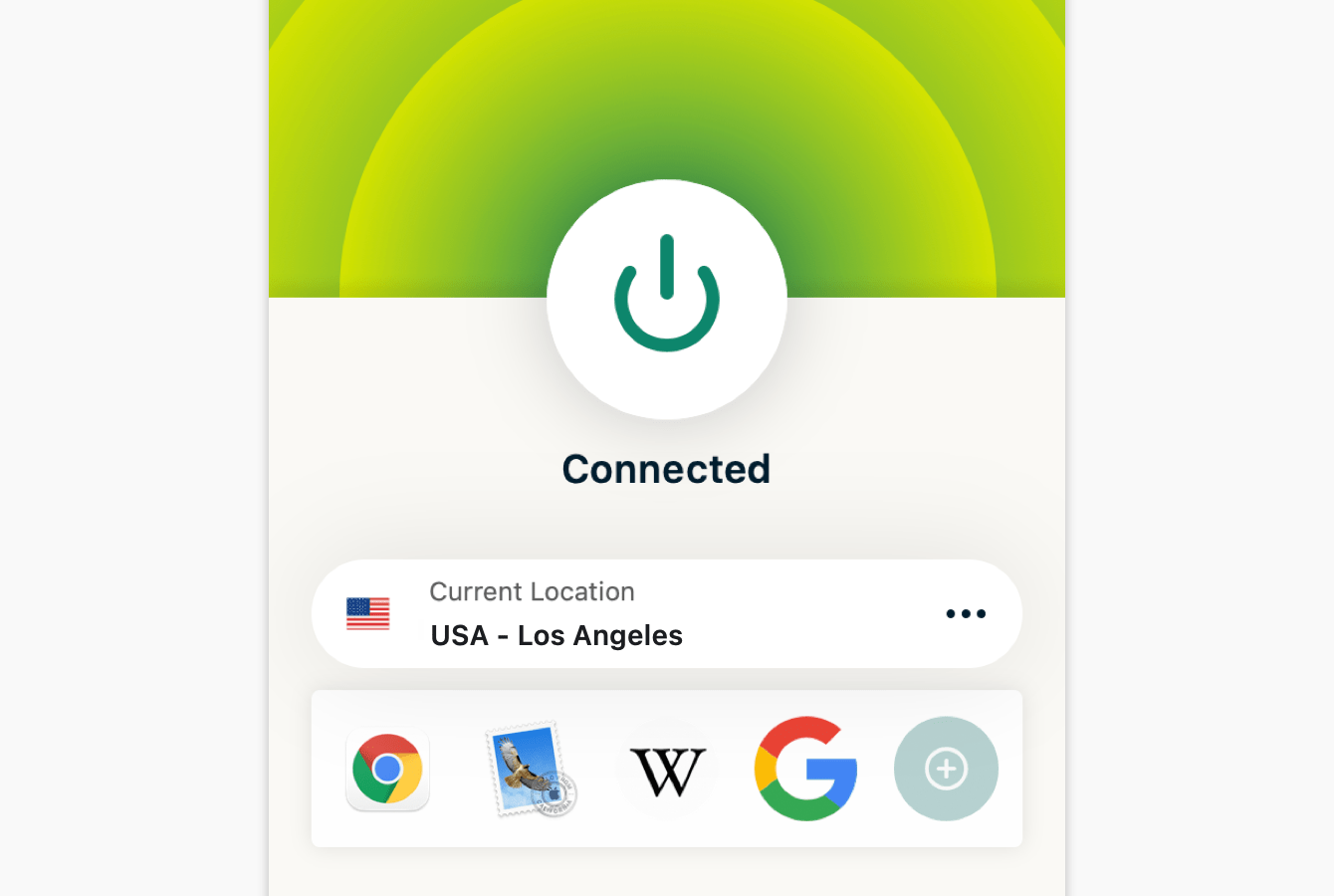
- Confirm pages load without captchas or TLS errors.
Some VPNs are incompatible with Safari. ExpressVPN offers reliable macOS/iOS support, TCP/UDP protocol handling, and split tunneling, resolving conflicts that cannot be fixed with settings alone. For more VPN options on iPhone, see best VPNs for iPhone.
Best VPNs That Work Well With Safari

ExpressVPN
Reliable connections, TCP fallback, split tunneling.
NordVPN
Dedicated IPs, large server pool, privacy-focused.
TunnelBear
Simple interface, good for testing and light use.Does Safari Block VPNs on Purpose
No. Safari does not intentionally block VPNs. Its strict TLS verification, privacy protections, and modern protocol handling can expose conflicts with VPNs or corporate proxies. Safari only blocks connections when it detects security or certificate issues.
Conclusion
When Safari is not working with a VPN, the problem usually comes down to DNS conflicts, shared IPs, protocol incompatibility, split tunneling misconfigurations, or Safari’s privacy features. Follow the step-by-step fixes in order: confirm errors, clear caches, test protocols, adjust settings, and if needed, switch to a reliable VPN like ExpressVPN. These steps usually restore smooth browsing and prevent captchas, TLS errors, and failed page loads.
FAQ
Safari may fail because the VPN changes your IP and DNS, triggers captchas, or conflicts with privacy features like Private Relay. Adjusting settings, renewing IP, or switching protocols usually resolves this. For more iPhone-specific VPN troubleshooting, see VPN not working on iPhone.
This error occurs when Safari detects a mismatch between the website’s certificate and the VPN’s routing or proxy behavior.
Many VPNs use shared IP addresses. Sites like Google may detect multiple users on the same IP and trigger captchas. Switching servers or using a VPN with dedicated IPs solves this issue.


Read our disclosure page to find out how can you help VPNCentral sustain the editorial team Read more


Improve this guide




User forum
0 messages