
Sky Not Working With VPN: Fix Sky Broadband Blocking Your VPN


 7 min. read
  Published on

When your VPN won’t connect on Sky Broadband (or connects but nothing loads), the usual culprits are Sky’s content filters, blacklisted IP ranges, or router quirks.
This guide gives you clear, step-by-step fixes that work for beginners. You’ll learn how to adjust Sky Broadband Shield, change VPN protocols and ports, enable UPnP, set MTU, toggle IPv6, and handle streaming (Sky Go/Sky Sports) versus work VPNs.
Why Sky Broadband Can Break VPNs
Sky doesn’t “ban” VPNs. But two things often get in the way:
- Sky Broadband Shield (parental controls) can silently block VPN sites or traffic.
- Sky Hub + MAP-T (the way Sky shares IPv4 over IPv6) can upset some VPN protocols, especially IPsec (IKEv2/L2TP), causing timeouts like error 809.
The fixes below address both. Start at the top and work down. After each change, retest your VPN so you know what actually solved it.
Step-by-Step Fixes for Sky + VPN
1) Turn Off Sky Broadband Shield
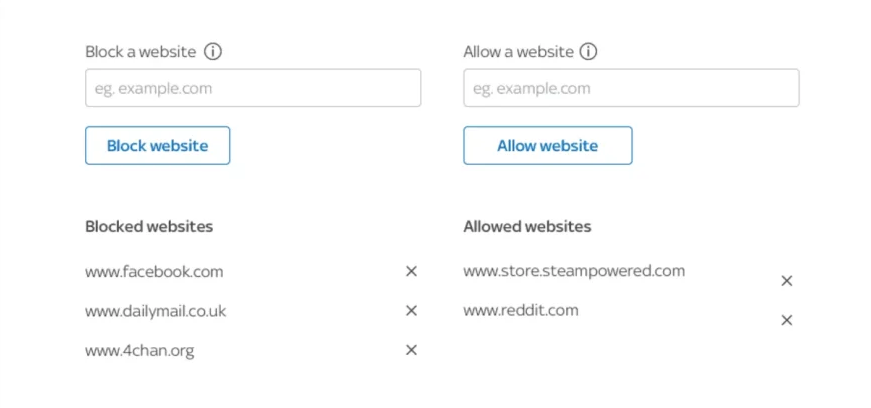
Goal: stop the network filter from blocking your VPN.
- On your phone or PC, open the My Sky app or go to your Sky account in a browser and sign in as the account holder.
- Go to Broadband → Sky Broadband Shield.
- Change the setting to 18+ or set it to Off. Save.
- Wait 10–15 minutes for the change to apply.
- Restart your Sky Hub (turn it off for 10 seconds, then on) and your device, then test the VPN.
Tip: If you manage family filters, you can re-enable Shield later but whitelist your VPN provider domain if the option exists.
2) Switch Your VPN Protocol (and Port) to What Works on Sky
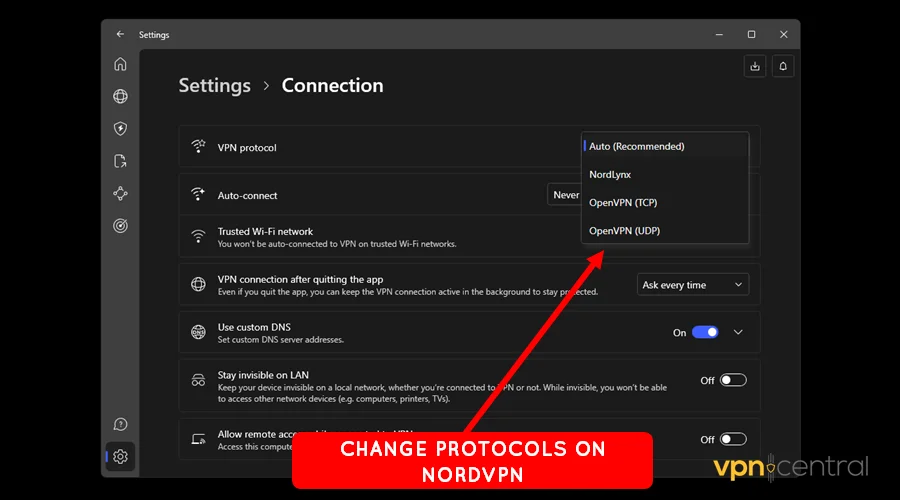
Goal: use a protocol that survives MAP-T and filters.
- Open your VPN app → Settings → Protocol.
- Try these in order:
- OpenVPN TCP on port 443 (most reliable; looks like normal HTTPS).
- WireGuard (fast; usually works well on Sky).
- OpenVPN UDP (switch to TCP if it drops).
- IKEv2 only if your work requires it (may fail on some Sky hubs).
- Pick a different UK server than you used before (fresh IP).
- Connect and test a normal website and the app you care about.
Beginner note: If your VPN lets you enter a port number, use 443 for TCP. If nothing loads after connecting, change protocol again and retest.
3) Enable UPnP on Your Sky Hub (Helps Work VPNs)
Goal: give your line a friendlier “1:1” mapping so VPN packets aren’t mangled.
- Connect to your Sky Wi-Fi. In a browser, visit
https://192.168.0.1(typical hub address). - Sign in to the router admin page (check the label on the hub for login details if you haven’t changed them).
- Go to Advanced → Network (or similar) → find UPnP and turn it On.
- Click Apply or Save, then reboot the hub.
- Reconnect your VPN and test again (especially helpful for Always On VPN/IKEv2).
Why this helps: UPnP often nudges Sky’s network into a 1:1 mapping mode for your line, improving NAT traversal for VPNs.
4) Set MTU to 1472 (Fixes Error 809 and Random Drops)
Goal: stop large packets from being dropped on Sky’s MAP-T path.
Windows steps:
- Right-click Start → Windows Terminal (Admin) or Command Prompt (Admin).
- Run
netsh interface ipv4 show subinterfacesand note your active adapter name (e.g., “Wi-Fi”). - Run:
netsh interface ipv4 set subinterface "YOUR-ADAPTER-NAME" mtu=1472 store=persistent - Disconnect and reconnect your VPN. Test again.
macOS steps:
- Click the Apple menu → System Settings → Network.
- Select your active interface (Wi-Fi or Ethernet) → Details → Hardware.
- Set Configure to Manually if needed, and set MTU to 1472. Click OK → Apply.
- Reconnect your VPN and test.
Tip: If 1472 still misbehaves, try 1460–1464. Keep notes of values you try.
5) Disable IPv6 Temporarily (If Your VPN Struggles)
Goal: force the VPN to use IPv4 only while you test.
Windows steps:
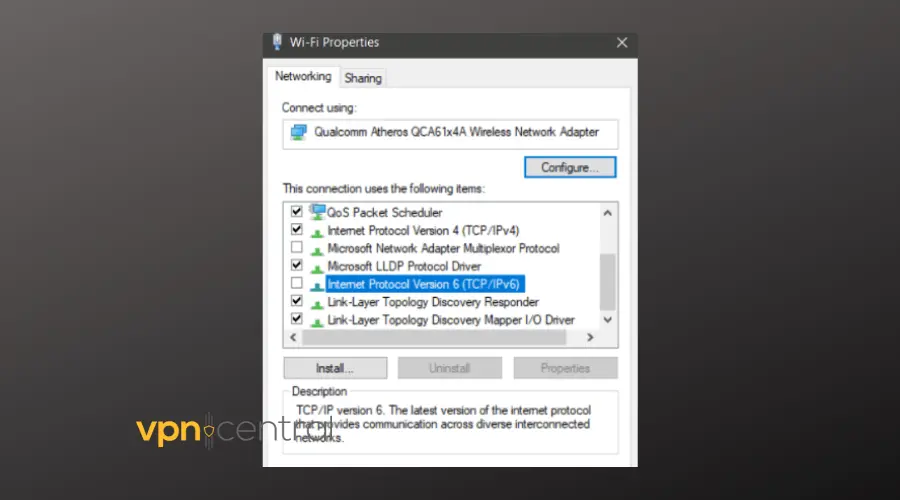
- Press Windows + R, type
ncpa.cpl, press Enter. - Right-click your active connection → Properties.
- Untick Internet Protocol Version 6 (TCP/IPv6) → OK.
- Reconnect your VPN and test. (You can re-enable IPv6 later.)
macOS steps:
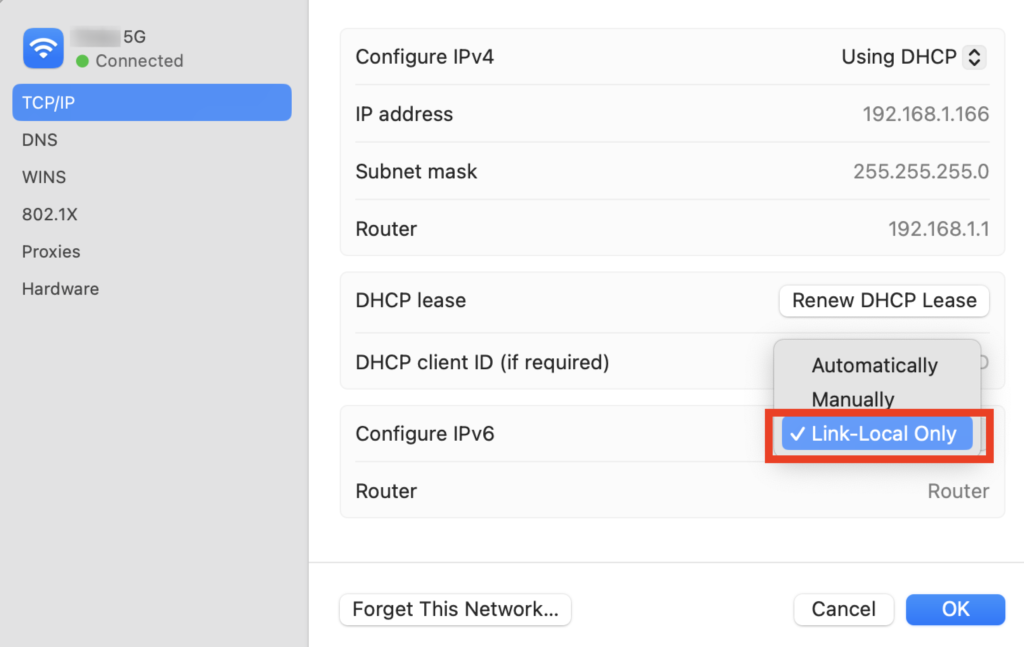
- Apple menu → System Settings → Network → select your connection → Details.
- Under TCP/IP, set Configure IPv6 to Link-local only (or Off if available).
- Apply changes, reconnect your VPN, and test.
6) Streaming Not Working (Sky Go / Sky Sports): Rotate and Clean
Goal: bypass IP blocks and data residue that reveals VPN usage.
- In your VPN app, switch to a different UK server (not the nearest one—choose a new city).
- Sign out of the Sky app or website, close it, then relaunch.
- Clear the app/browser data: on mobile, clear app storage/cache; in browsers, clear cookies for Sky domains.
- Try a protocol change (OpenVPN TCP 443 often works best for streaming).
- If Sky Sports is the only issue, follow the brand-specific tips in ExpressVPN not working with Sky Sports.
- For travel scenarios, use the region tips in how to watch Sky Go in France.
- Kodi workflow fans can also see Sky Sports on Kodi for a supported path.
Important: Some providers refresh UK IPs more aggressively and “just work” for Sky services; rotating servers is your quick win.
7) Use Split Tunneling (So Work VPN Doesn’t Break Home Apps)
Goal: route only work traffic through your corporate tunnel.
- Open your VPN app → Settings → look for Split Tunneling (or “Allow apps outside VPN”).
- Add streaming apps (Sky Go, browsers) to the “outside VPN” list.
- Reconnect. Your work tools use the VPN; Sky apps use your normal Sky line.
- If your company blocks split tunneling, disconnect the work VPN while using Sky apps, then reconnect afterward.
8) Check if the Hub Is the Bottleneck (Easy Diagnostic)
Goal: prove whether the Sky Hub is the issue.
- Turn off Wi-Fi on your PC/phone.
- Use your phone’s mobile hotspot (4G/5G). Connect your device to the hotspot.
- Connect the VPN. If it suddenly works perfectly, the Sky Hub is likely the blocker (passthrough, NAT, or firmware quirk).
- Run VPN on the device (not the router), or consider a router that’s more VPN-friendly. See our overview of a VPN blocked at the router level.
9) Verify VPN Ports Quickly (When Protocols Fail)
Goal: confirm ports aren’t blocked by something local (firewall, security app, or misconfig).
- Stop the VPN.
- Follow the quick checks in how to check if a VPN port is blocked.
- If a port looks blocked, switch your VPN to TCP 443 or another open/allowed port in your app and retry.
10) Advanced: Consider Your Own Router (Only If Needed)
Goal: full control when the Sky Hub keeps fighting your setup.
- Confirm the problem truly disappears on a mobile hotspot (Step 8). If yes, the hub is likely the constraint.
- Choose a router known for solid VPN passthrough and easy port controls.
- Set it up on Sky with DHCP Option 61 (required for authentication). Many guides show model-specific steps.
- Retest your VPN. Keep the Sky Hub as a backup in case you need support.
Note: Most users won’t need this if Shield/UPnP/MTU/Protocol changes are done.
VPN Protocols vs Common Sky Issues (Quick Comparison)
| Protocol | Best for | If it fails on Sky, try |
|---|---|---|
| OpenVPN TCP (443) | Reliable through strict networks; streaming | WireGuard or OpenVPN UDP; rotate UK servers |
| WireGuard | Speed and simplicity | Switch to TCP 443; disable IPv6; new UK endpoint |
| OpenVPN UDP | Lower latency | OpenVPN TCP 443; adjust MTU; WireGuard |
| IKEv2 / AOVPN | Corporate Windows/macOS profiles | Enable UPnP; MTU 1472; switch to SSTP or OpenVPN TCP |
| L2TP/IPsec | Legacy setups | NAT-T enabled; lower MTU; prefer SSL-based VPNs |
| SSTP (SSL) | Work VPN behind firewalls | Usually fine on Sky; fallback if IKEv2 fails |
| PPTP | Very old/unsupported | Avoid; use modern protocols |
FAQ – Sky Broadband and VPN
No. Sky doesn’t ban VPNs, but filtering (Broadband Shield) and the hub’s NAT/translation can break some connections. Turn Shield off, then try UPnP, protocol changes, and MTU tweaks.
Packets are being dropped or fragmented. Enable UPnP on the hub, set MTU to 1472, and use SSTP or OpenVPN TCP if your IT policy allows. This usually clears 809 on Sky.
Switch to OpenVPN TCP 443, rotate to a fresh UK server, and flush DNS. If that fails, check ports.
Conclusion
Most “Sky not working with VPN” problems boil down to filtering, protocol choice, or how the Sky Hub handles traffic.
Work through the steps, Shield off, protocol swap, UPnP on, MTU 1472, IPv6 off, and retest after each change.
For streaming, rotate UK servers and tidy app/browser data. If the hub is the roadblock, run VPN on the device or switch to a router that plays nicer with tunnels.


Read our disclosure page to find out how can you help VPNCentral sustain the editorial team Read more


Improve this guide




User forum
0 messages