
How to Use a VPN: Simple Step-by-Step Guide (2026)


 6 min. read
  Updated on
Want to learn how to use a VPN? Stick around. If you care about privacy, security, or unlocking content online, a VPN can be your ally. Short for virtual private network, this tool locks down your internet so outsiders cannot snoop, and can also help you change IP location.
Below, we’ll walk you through all the steps so you can confidently configure and start using VPN on your device. You’ll know exactly how to pick a VPN, set it up, and use it every day.
How to use a VPN
Table of contents
- How to use a VPN
- Step 1: Pick a VPN that will not give you headaches
- Step 2: Install the app like you would any other
- Step 3: Fire it up and log in
- Step 4: Pick where you want to appear
- Step 5: Hit connect and check it worked
- Step 6: Tweak the settings so you do not have to babysit it
- Step 7: Use it every day without fuss
- Advanced tricks if you want to push it further
- Fixing the common snags
- Is using a VPN legal and safe
- FAQs
Step 1: Pick a VPN that will not give you headaches
- Look at a few top providers.
- Decide which one fits your needs.
- Create an account and sign up.
Free VPNs sound tempting, but they often sell data or slow your connection. If privacy or streaming matters, skip the freebies. This breakdown of the differences between free and paid VPNs explains why it matters. If you want a clearer picture of the basics, start with this plain guide on what a VPN is and how it works.
A few worth your time:
- ExpressVPN: Fast, clean, and works on almost anything.
- CyberGhost: Simple for beginners and offers dedicated servers for streaming.
- Private Internet Access (PIA): Packed with settings if you like to tweak things.
Step 2: Install the app like you would any other
- Head to your provider’s site or your device’s app store.
- Download the app.
- Open the installer and follow the on-screen prompts.
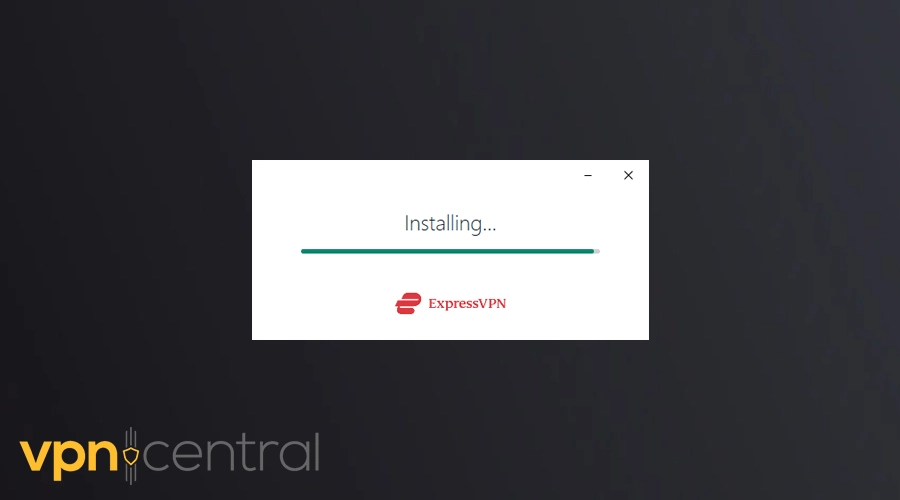
Installation is easy. On a laptop, grab the installer file and double-click it. On a phone or tablet, it is just one tap in the store. No complicated setup. If you want to dig deeper, learn how a mobile VPN works on phones and tablets.
Step 3: Fire it up and log in
- Open the app.
- Enter your email and password.
- Let the app add a VPN profile if it asks.
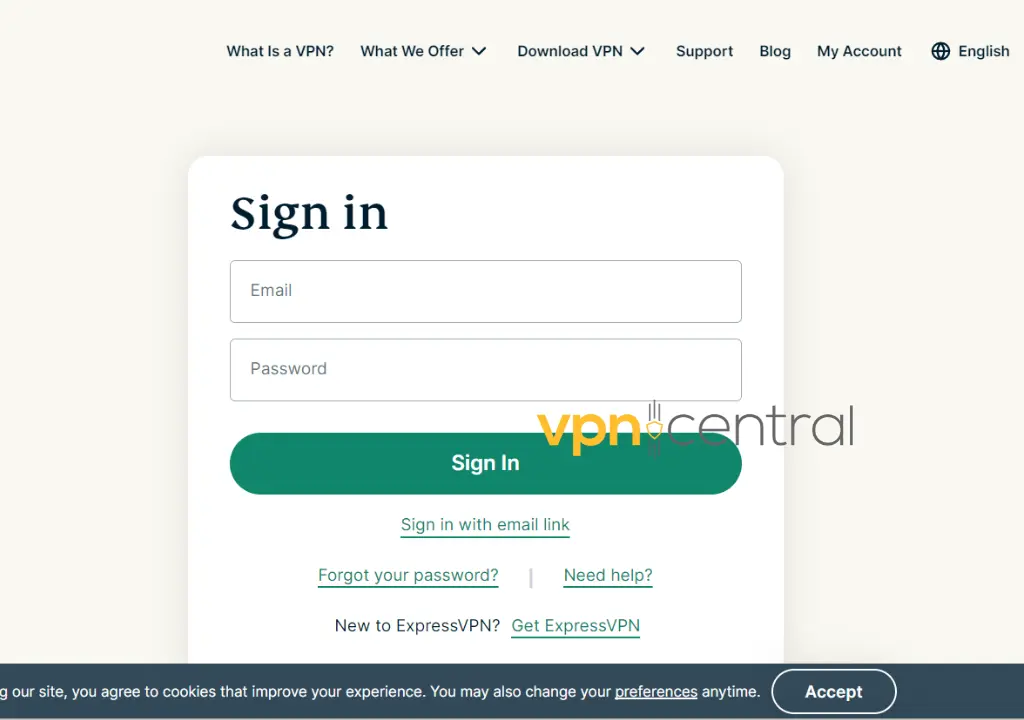
The dashboard usually shows one big connect button and a list of countries. No manual needed here.
Step 4: Pick where you want to appear
- Open the server list.
- Choose a location.
- Confirm your choice.
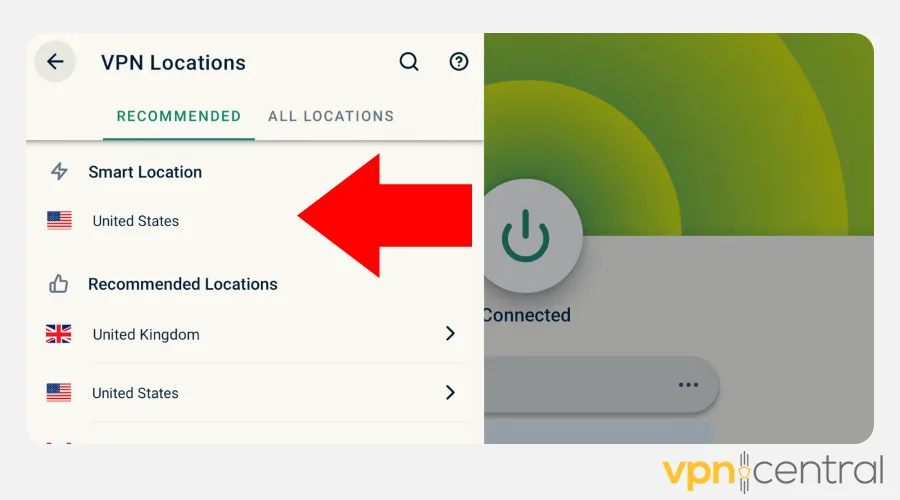
If you connect close to home, you will get faster speeds. If you connect overseas, you can unlock restricted content. VPNs also affect how sites see your location, which ties into reverse geocoding in browsing.
Step 5: Hit connect and check it worked
- Tap the big connect button.
- Wait for the status to show connected.
- Check your new IP on a site like whatismyip.com.
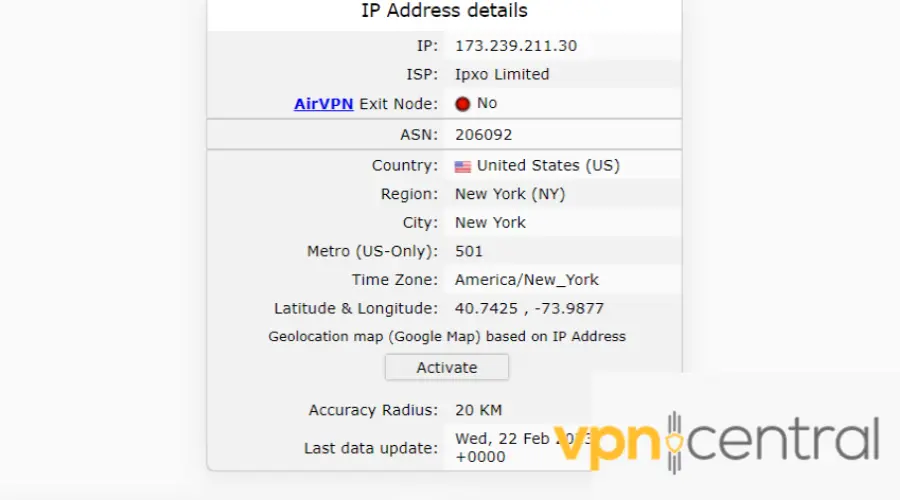
Your traffic is now encrypted and your IP address hidden. For more background on this, read how to encrypt your internet connection effectively.
Step 6: Tweak the settings so you do not have to babysit it
- Open the app’s settings.
- Turn on the kill switch.
- Enable auto-connect on Wi-Fi you do not trust.
- Pick a protocol like WireGuard or OpenVPN.
The kill switch keeps you safe if the VPN drops. Auto-connect saves you time when hopping Wi-Fi. Always make sure you avoid a VPN misconfiguration, since that can leak your IP without you noticing.
Step 7: Use it every day without fuss
- Connect before opening a browser on public Wi-Fi.
- Switch servers if you need a different location.
- Keep it running in the background.
It becomes part of your routine, like a seatbelt. It keeps you safe on public networks, helps with online shopping, and lets you keep streaming when traveling.
Advanced tricks if you want to push it further
You can try split tunneling, double VPN, or obfuscation. If you run a business, you may want to learn about VPN passthrough for business benefits. If you want to cover your entire house, install the VPN on your router.
Fixing the common snags
VPNs are not flawless. Speeds can drop, sites may block connections, and your region may not update right away. In some cases, you should check if your VPN ports are blocked. That is often the reason you cannot connect at all.
If you still cannot connect or need to stop the service for troubleshooting, you can follow this guide on how to turn off a VPN safely on any device to temporarily disable it.
Is using a VPN legal and safe
VPNs are legal in most countries. They are used daily by travelers, remote workers, and people who care about privacy. If you wonder things like can a VPN provider see HTTPS traffic, the short answer is no, because HTTPS adds its own encryption. Another question people ask is can parents see private browsing history, which this guide explains in detail. For the broader picture, read why people use a VPN in the first place.
FAQs
The easiest way is to check your IP address. Go to a site like whatismyip.com. If the location matches the VPN server you selected, it is working. If it still shows your real location, disconnect and reconnect.
Yes, and it is often recommended. Leaving it on ensures you are protected whenever you connect to the internet, especially on public Wi-Fi. Just note that it may slow down your connection slightly.
No. A VPN hides your IP address and encrypts your traffic, which is a big step for privacy. But websites can still track you through cookies, accounts, and device identifiers.
Most providers let you use a VPN on several devices at once. This means you can protect your laptop, phone, and tablet at the same time. Some even allow unlimited connections.
Encryption adds extra steps between you and the internet, which can cause a slight drop in speed. If you pick a server close to your location or switch protocols, you can usually fix the slowdown.
Wrapping it up
Learning how to use a VPN comes down to a few simple steps. Install the app, sign in, pick a server, and hit connect. From there, you can adjust settings to fit your needs and use it as part of your daily routine. It is a straightforward tool that gives you more privacy, more security, and more freedom every time you go online. If you haven’t installed one yet, here’s how to set up a VPN and get going in minutes.


Read our disclosure page to find out how can you help VPNCentral sustain the editorial team Read more


Improve this guide

User forum
0 messages