
Proxy Not Working for This Image: Causes and Fixes


 5 min. read
  Published on

When you see the error “Proxy not work for this image”, it means the proxy or VPN you’re using failed to fetch a picture from its source. This issue is common when browsing websites, accessing forums, or using extensions that reroute image traffic.
It’s not an official browser or HTTP error code, but rather a notice generated when a proxy connection breaks down mid-request. The result? Pages look incomplete, with broken thumbnails or placeholders instead of images.
Table of contents
How to Fix Proxy Not Working for Images
Images often fail to load through proxies due to misconfigured settings, blocked CDNs, hotlink protection, DNS errors, or browser extensions. Below are the most effective fixes, each explained step by step.
1. Test Without the Proxy or VPN
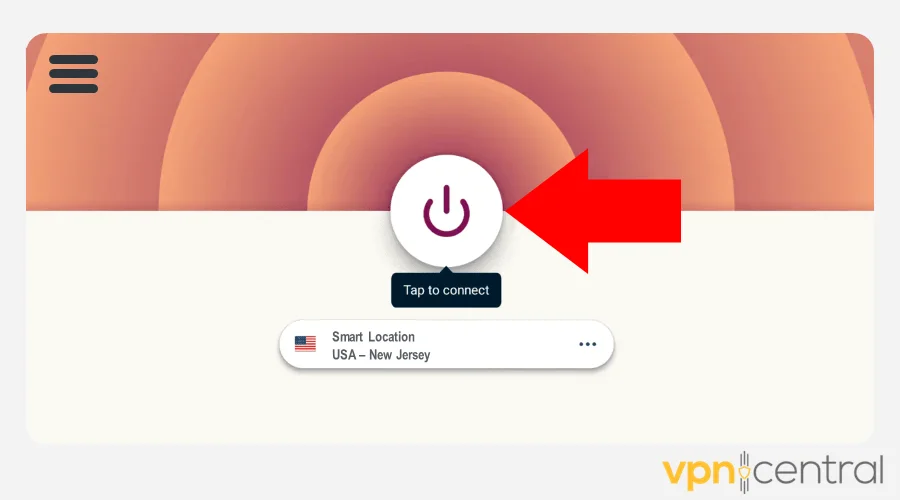
Turn off your proxy or VPN and reload the page. If images display normally, the proxy is the cause. Try switching to a different server location or a residential VPN that mimics home IPs.
Premium services like NordVPN or Surfshark are less likely to be blocked compared to free proxies.
2. Clear Browser Cache and Cookies
Cached data may force your browser to reuse broken image paths. Clearing cache and cookies often resolves stale requests.
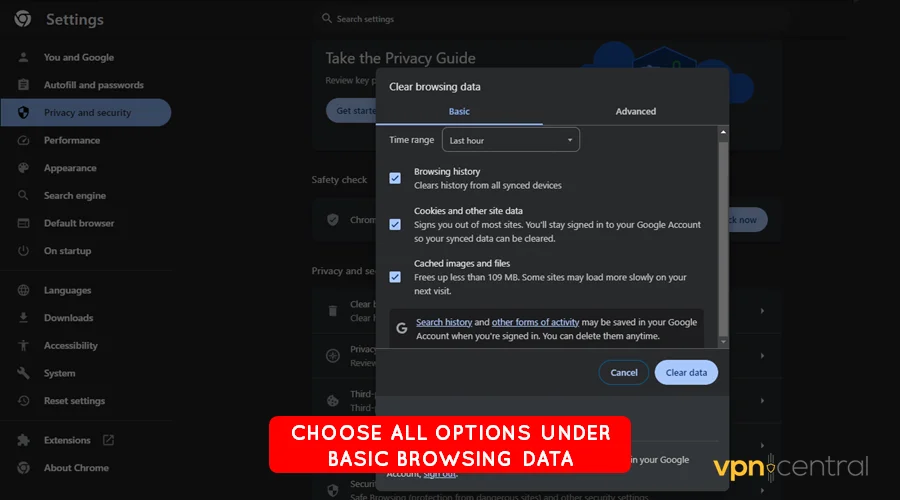
- Chrome/Edge: Press Ctrl + Shift + Delete, select Cached Images and Cookies, then Clear.
- Firefox: Press the same shortcut, check Cache and Cookies, then Clear Now.
If the error persists, it may relate to the proxy server’s connection, such as when a proxy cannot establish connection with target.
3. Check and Adjust Proxy Settings
Windows
- Go to Settings > Network & Internet > Proxy.
- Turn OFF “Use a proxy server” and test.
- If images load, re-enable and add sites to the bypass list.
macOS
- Open System Settings > Network > Proxies.
- Uncheck HTTP/HTTPS/SOCKS Proxy, apply, and test.
Linux
- Check for
http_proxyorhttps_proxyin Terminal. - Run
unset http_proxy https_proxyto disable.
Browsers
- Firefox: Settings > Network Settings → switch to No proxy or Use system proxy.
- Chrome/Edge: follow system proxy settings.
VPN/Proxy Apps
- Switch server/location, or disable filters like HTTPS scanning/ad blocking.
- Prefer residential servers if CDNs block datacenter IPs.
If images still fail, the issue may be provider-side — switch proxy/VPN or contact support.
Misconfigured settings often cause this error. Start by learning how to check proxy settings, then make adjustments as needed with this guide on how to change proxy settings.
Free proxy lists often cause instability and unusual errors like proxy error no response from bot psghag2. Instead, stick to trusted providers with strong support.
4. Disable Browser Extensions and Ad Blockers
Extensions may block legitimate images. Disable all extensions, reload the page, then re-enable them one by one to identify the culprit. Aggressive blockers may even trigger a proxy error 429 if too many requests are blocked.
For safe filtering, consider using uBlock Origin, which lets you whitelist trusted sites.
5. Flush or Change DNS
Incorrect DNS can route image requests to the wrong server. Flush DNS to fix it:
- Windows: Open Command Prompt → type
ipconfig /flushdns. - macOS: Open Terminal → type
sudo dscacheutil -flushcache; sudo killall -HUP mDNSResponder. - Linux: Restart
systemd-resolvedornscd.
Alternatively, switch to reliable public DNS like Google (8.8.8.8) or Cloudflare (1.1.1.1).
6. Try a Different Proxy or Server
Sometimes the server you’re connected to is blocked. Datacenter proxies are fast but often filtered by CDNs, while residential proxies bypass restrictions more easily.
In corporate testing environments, issues may appear as a Burp Suite proxy error on IP 443 when SSL inspection disrupts traffic.
7. Open Images Directly and Inspect Errors
Right-click the broken image → “Open in New Tab.” If it doesn’t load, check the browser’s Developer Tools → Network tab. Errors like a 404, 403, or even proxy error 503 will tell you what failed.
Proxy Types and Image Traffic
| Proxy Type | IP Source / Use | Anonymity | Image Behavior |
|---|---|---|---|
| Residential | ISP-assigned home/mobile IPs | High | Loads images normally; appears as real user traffic. |
| Datacenter | Data center servers | Medium | Fast, but many CDNs block them. |
| Transparent | Corporate/school networks | Low | Forwards your real IP; often used for filtering/caching. |
| Anonymous | Proxy services | Medium | Hides IP but reveals proxy use. |
| Elite | Proxy services | High | Conceals IP and proxy use; images usually load fine. |
| Forward Proxy | Client-side | Varies | Forwards all requests; misconfig means all content fails. |
| Reverse Proxy | Server/CDN-side | Invisible | Usually improves delivery; misrouting can break images. |
FAQs
Hosts often block VPN IP ranges. Switching servers or using residential VPNs usually helps.
Yes, but you’ll lose privacy. Safer: switch to a stable proxy or VPN provider.
It blocks unauthorized sites from embedding images. If active, a proxy request without the correct referrer is rejected.
Conclusion
The error “Proxy not work for this image” signals a failure in the connection path — from your browser to the proxy and onward to the image host.
Best practices:
- Use premium VPN/proxy providers with residential IPs.
- Keep DNS updated.
- Switch servers or proxies when blocked.
- Manage browser extensions wisely.
By troubleshooting step by step, you can restore image loading while still keeping the privacy and security benefits of proxies and VPNs.


Read our disclosure page to find out how can you help VPNCentral sustain the editorial team Read more


Improve this guide



User forum
0 messages