
How to Fix VPN Error 720 on Windows: Quick Steps


 6 min. read
  Updated on
VPN error 720 usually shows up on Windows when your system fails to establish a PPP connection with the VPN server. This can be caused by corrupted WAN Miniport adapters, misconfigured TCP/IP settings, or issues with the VPN server itself. Here’s how to fix it step by step.
VPN error 720 on Windows happens when the PPP negotiation with the VPN server fails. To fix it, reinstall WAN Miniport adapters, reset TCP/IP, and reconfigure your VPN connection. In most cases, this restores a working VPN tunnel within minutes.
Table of contents
- Solutions to fix VPN error 720
- Before you start
- 1. Reinstall WAN Miniport adapters
- 2. Reset TCP/IP settings
- 2b. Reset Winsock and flush DNS
- 2b. Reset Winsock and flush DNS
- 3. Recreate the VPN connection
- 4. Update network drivers
- 5. Restart Remote Access Connection Manager service
- 6. Run Windows Network Troubleshooter
- 7. Disable IPv6
- 8. Use a reliable VPN provider
- FAQs about VPN error 720
- Conclusion
Solutions to fix VPN error 720
Before you start
- Check your internet connection is stable.
- Verify VPN login credentials are correct.
- Temporarily disable antivirus or firewall that may block the connection.
1. Reinstall WAN Miniport adapters
Corrupted WAN Miniports often trigger VPN error 720. Here’s how to reinstall them:
- Press Win + X and open Device Manager.
- Expand Network adapters.
- Right-click each WAN Miniport (PPTP, L2TP, SSTP, IKEv2) and select Uninstall device.
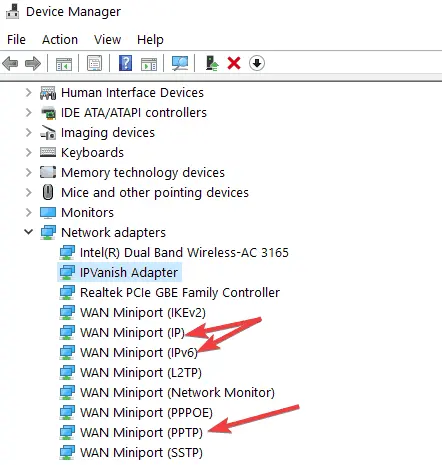
- Restart your PC.
- Windows will automatically reinstall the adapters.
If reinstalling Miniports doesn’t work, it’s worth checking for other common issues like VPN error 789 on Windows, which is also tied to tunneling protocol failures.
2. Reset TCP/IP settings
If the TCP/IP stack is corrupted, VPN connections can fail with error 720.
- Open Command Prompt as administrator.
- Type netsh int ip reset resetlog.txt and press Enter.
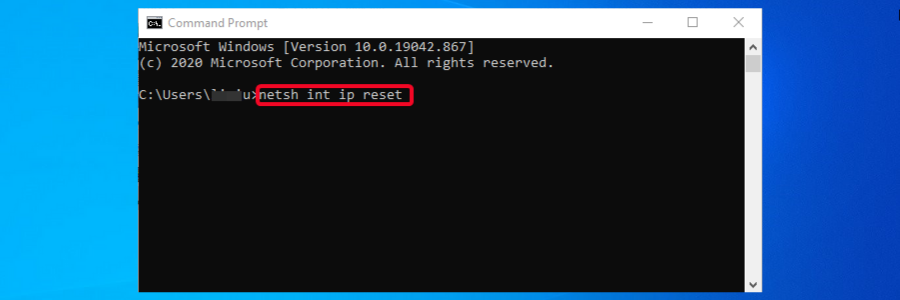
- Restart your computer.
- Try reconnecting to the VPN.
TCP/IP misconfigurations can also lead to problems such as VPN error 868 when the server address is unreachable. In other cases, blocked GRE or IPsec traffic shows up as VPN error 806 on Windows.
2b. Reset Winsock and flush DNS
2b. Reset Winsock and flush DNS
If apps changed your network stack, Winsock can break PPP negotiation. Reset it and clear DNS cache:
- Open Command Prompt as administrator.
- Run:
netsh winsock reset - Run:
ipconfig /flushdns - Restart your PC and test the VPN.
Blocking or misrouting of UDP 500/4500 or NAT-T often causes error 809 in L2TP/IPsec connections too, see our VPN error 809 guide for fixes tailored to those cases.
3. Recreate the VPN connection
Sometimes the VPN profile itself gets corrupted.
- Press Win + I to open Settings.
- Go to Network & Internet > VPN.
- Remove the existing VPN connection.
- Click Add a VPN connection and re-enter details provided by your VPN provider.
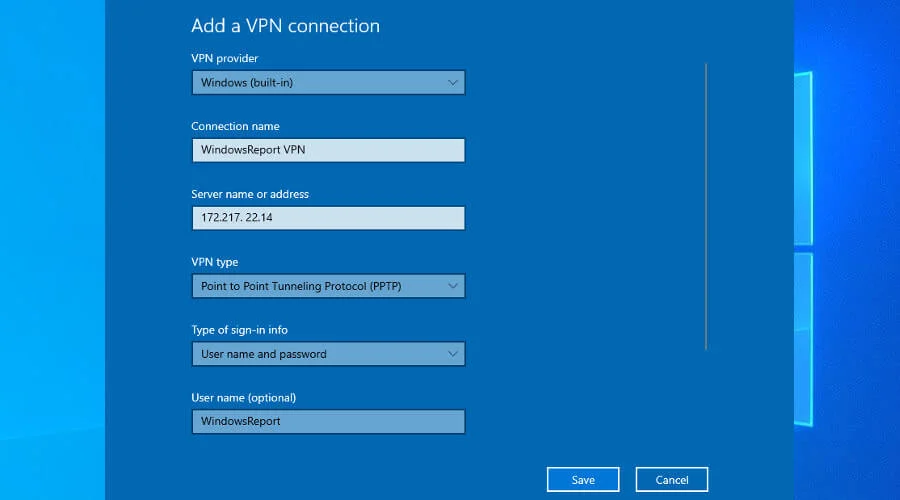
- Save and try connecting again.
If you notice the connection dropping right after setup, you may be dealing with VPN error 691 related to authentication failure.
4. Update network drivers
Outdated or faulty drivers may also trigger VPN error 720.
- Open Device Manager.
- Right-click your network adapter and select Update driver.
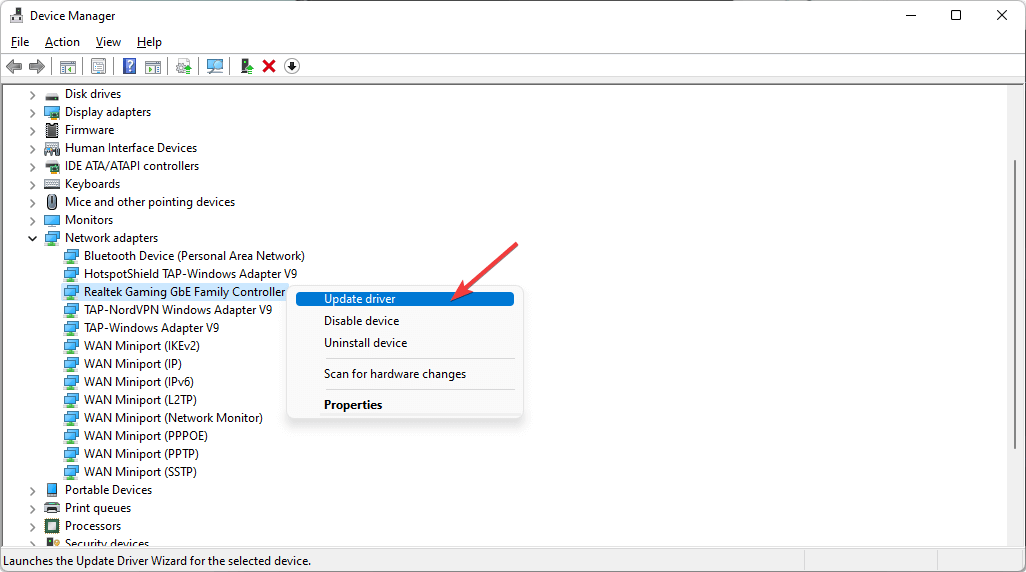
- Choose Search automatically for drivers.
- If no updates are found, download the latest driver from the manufacturer’s website.
- Restart your system and reconnect.
Driver-related issues are sometimes the root cause of VPN error 1168 element not found when Windows cannot properly locate necessary components.
5. Restart Remote Access Connection Manager service
The Remote Access Connection Manager is a Windows service that handles VPN connections in the background. If it stops working properly, you may see error 720 when trying to connect. You can restart it directly from the Services panel:
- Press Win + R, type services.msc, and press Enter to open the Services window.
- Scroll down the list until you find Remote Access Connection Manager.
- Right-click it and choose Restart.
- While you’re there, also restart the Telephony service and the Secure Socket Tunneling Protocol Service, since they work together with VPN connections.
- Once restarted, close the Services window and try connecting to your VPN again.
Service malfunctions can also trigger other problems like VPN error 631 when the connection is aborted. You might also see messages like a VPN aborted due to local system, which often points to service and permission issues.
6. Run Windows Network Troubleshooter
Windows has built-in troubleshooters that can automatically detect and fix issues.
- Press Win + I and go to System > Troubleshoot.
- Click Other troubleshooters.
- Run the Internet Connections troubleshooter.
- Apply the suggested fixes.
- Test your VPN connection again.
The troubleshooter is particularly useful if you face situations like a VPN showing connected but not working.
7. Disable IPv6
Some VPNs are incompatible with IPv6, which may trigger error 720.
- Press Win + R, type
ncpa.cpl, and press Enter. - Right-click your network adapter and select Properties.
- Uncheck Internet Protocol Version 6 (TCP/IPv6).
- Click OK and restart your PC.
- Try reconnecting to the VPN.
Disabling IPv6 is also a common fix for cases when a VPN won’t work over mobile data. If sessions keep dropping mid-connection, check for VPN Error 807: the connection to the VPN server was interrupted.
8. Use a reliable VPN provider
If the error persists after all fixes, the issue might be with your VPN server. Switching to a reliable provider like ExpressVPN can solve recurring 720 errors. ExpressVPN uses modern protocols, works seamlessly on Windows, and avoids the PPP negotiation problems that often trigger this error.
Download ExpressVPN now and fix VPN error 720 instantly
FAQs about VPN error 720
It means Windows cannot establish a PPP connection with the VPN server, usually due to network adapter or TCP/IP issues.
Yes. A strict firewall or antivirus may block PPP negotiation, causing the 720 error during connection.
In most cases, yes. Since Miniports handle tunneling protocols, reinstalling them clears corruption that breaks VPN connections.
Yes. It’s a Windows-specific PPP negotiation error, and you won’t see it on macOS or Linux.
Yes. If supported, try IKEv2 or OpenVPN instead of PPTP or L2TP, which are more prone to this error.
Conclusion
VPN error 720 can be frustrating, but it usually comes down to Miniport corruption, TCP/IP misconfigurations, or driver issues. By following the steps above, you should be able to restore your VPN quickly. For a permanent solution, ensure you’re using a reliable VPN that supports modern tunneling protocols.


Read our disclosure page to find out how can you help VPNCentral sustain the editorial team Read more


Improve this guide




User forum
0 messages