
How to Change VPN on Windows, macOS, Android, iOS, and Routers


 4 min. read
  Updated on
Learning how to change VPN setup and settings is useful when the connection slows down, apps do not load, or you need access to another region. Every major device gives you the tools to make changes fast. If you use a third party VPN app, you get even more settings to tweak.
How to Change VPN Settings
Table of contents
Windows 10 and 11
- Open Settings with Windows + I.
- Go to Network & Internet > VPN.
- Select your VPN and click Advanced options.
- Update the server address or change the VPN type (IKEv2, L2TP/IPsec, PPTP, SSTP).
- Save and reconnect.
If you work with shared folders, learn how to access files through a VPN in Windows 10 so your setup covers both speed and remote access.
Need your own endpoint for remote access? Here is how to set up a Windows 11 VPN server and manage it beside your regular profiles.
macOS
- Open System Settings > Network.
- Select your VPN in the sidebar.
- Click Details and edit server or login info.
- Choose a supported protocol like IKEv2 or L2TP/IPsec.
- Apply changes and reconnect.
If you want provider picks beyond the built in client, check the best VPNs for Mac and iPhone roundup.
Android
- Go to Settings > Network & Internet > VPN.
- Tap your VPN profile.
- Edit the server, login, or type.
- Save and reconnect.
If you prefer a simple setup, this guide to free VPNs for Android without registration explains your options and limits.
iPhone and iPad
- Open Settings > General > VPN & Device Management > VPN.
- Select your profile and tap Edit.
- Change server or authentication details.
- Save and reconnect.
Routers
- Log in at your router admin address, such as
192.168.0.1. - Open the VPN client page.
- Replace the server address or change protocol.
- Update login if needed.
- Save and restart.
Running a VPN on your router protects every device at once, but the menus and steps depend on the firmware you use.
Third Party VPN Apps
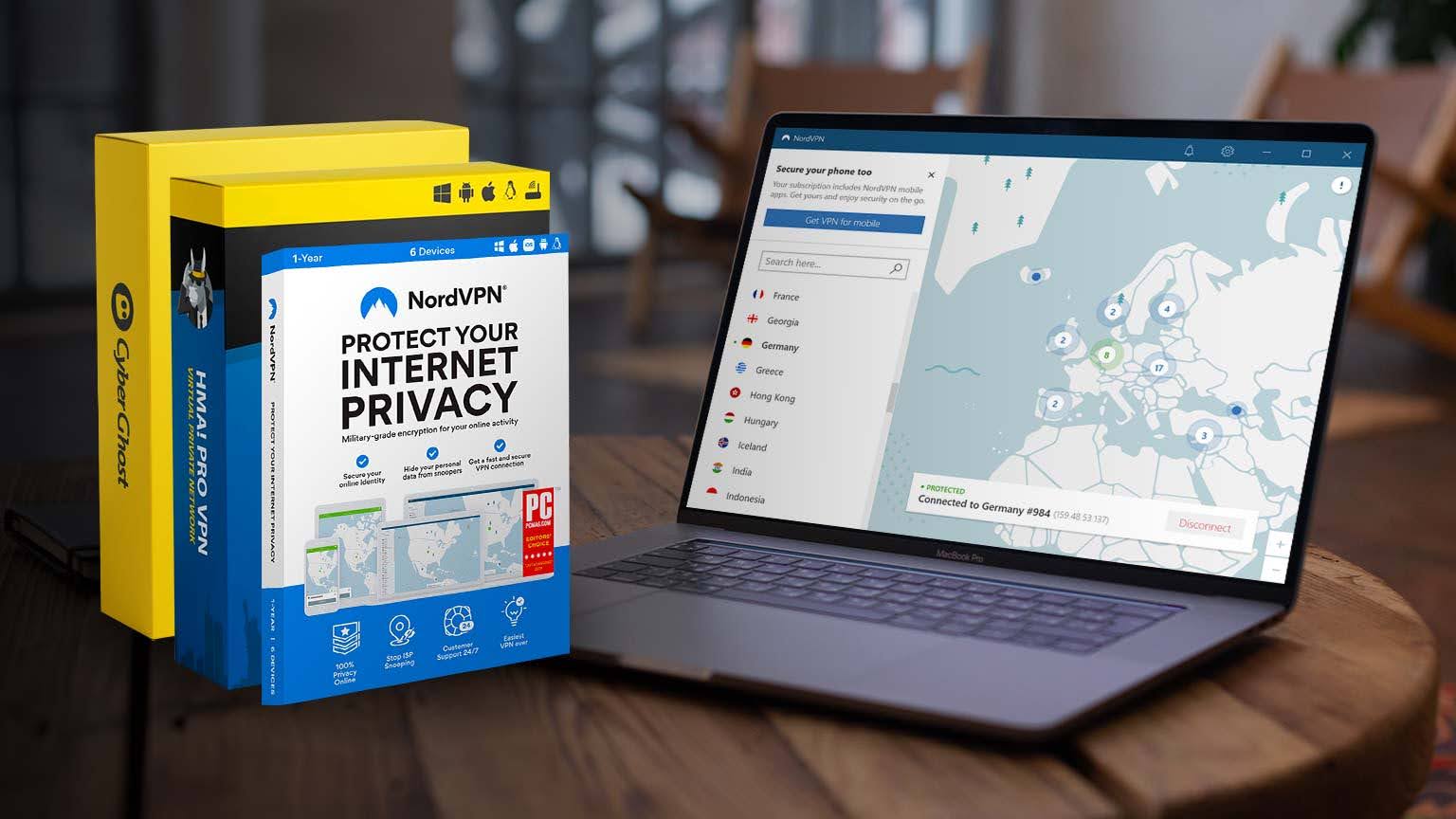
Most apps keep it simple with one big Connect button, but you can fine tune a lot more:
- Servers: Switch by country or city to balance speed and access.
- Protocols: Pick between OpenVPN, WireGuard, or IKEv2. For a deeper look at choices, see this best VPN protocols guide.
- Kill switch and split tunneling: Decide what happens if the VPN drops and which apps bypass the tunnel.
- Extra privacy: Some apps offer OpenVPN obfuscation or advanced setups like double VPN vs obfuscation to hide VPN traffic better.
- DNS and leak protection: Set custom DNS and block DNS, IPv6, and WebRTC leaks.
- Auto connect: Start with the system and reconnect on launch for hands off protection.
All of these tweaks sit on top of the core tech. If you want a plain English explainer, read how VPN encryption works. If you need a refresher on what a VPN is and what a VPN server is, those guides clear up the basics without fluff.
Troubleshooting Tips
- If it will not connect, confirm the server name and your login.
- If speeds crawl, try WireGuard or IKEv2 and test a closer location.
- If websites still block you, change to another region that the site allows.
- Update the VPN app and your device to prevent random drops.
FAQs
Yes. Windows, macOS, Android, and iOS let you add and edit VPNs in the system settings.
No. It is outdated and weak. Choose modern protocols like IKEv2, OpenVPN, or WireGuard.
Yes. Most company devices block VPN changes without IT approval.
Conclusion
Changing VPN settings does not take long. Update the server, swap the protocol, or adjust options in your VPN app, then run an IP check to confirm everything works. If a site still refuses to load, pick another region or protocol. If a device drops the tunnel, enable the kill switch and reconnect. Small changes lead to a smoother and safer connection.


Read our disclosure page to find out how can you help VPNCentral sustain the editorial team Read more


Improve this guide



User forum
0 messages